i4311 From Brady Workstation - Full Setup Guide
Shortcut Links
- Unboxing the Printer
- Finding Your License
- Find Your Installation Files
- Installing Brady Workstation
- Activating Your Brady Workstation Suite
- Connecting the i4311 to Your PC
- Loading Label Materials
- Creating Your First Label
- i4311 & Brady Workstation Support Resources
- Software and Licensing FAQ
- Troubleshooting
Unboxing the Printer
Unboxing steps and start-up screens (Click to expand the dropdown)
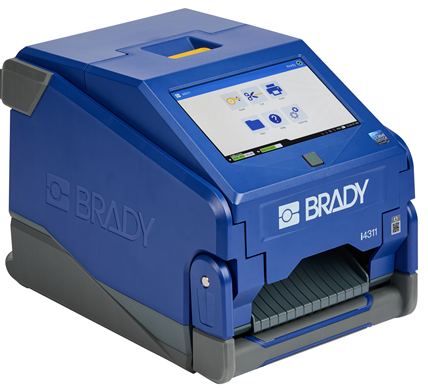
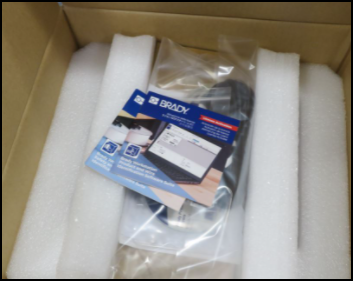
- Remove the foam and printer from the box.
- Plug in the printer.
There are multiple USB ports on the back of the printer. The charging port is on the right side on the back of the printer.
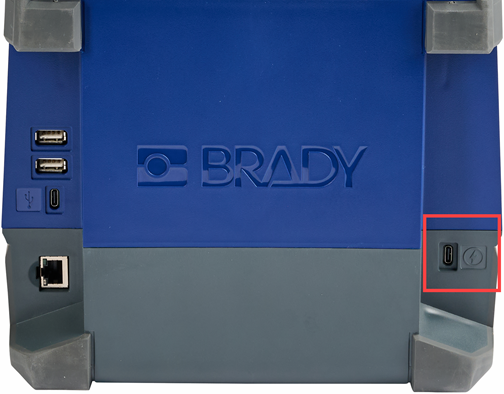
- Turn the printer on.
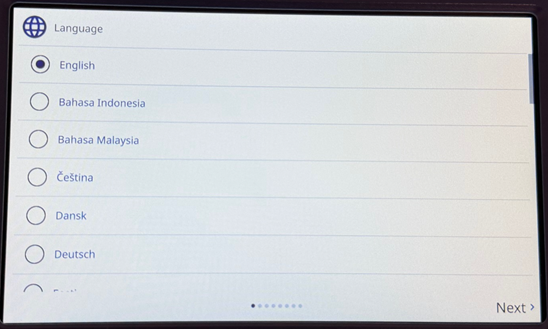
- Select the language and tap Next.
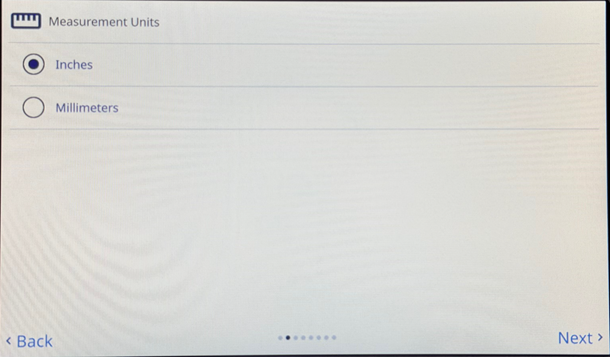
- Select the Measurement Units and tap Next.
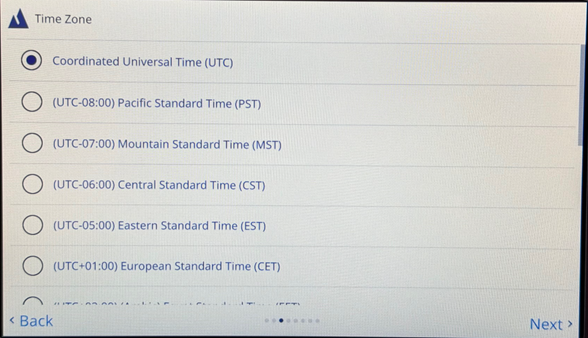
- Select the Time Zone and tap Next.
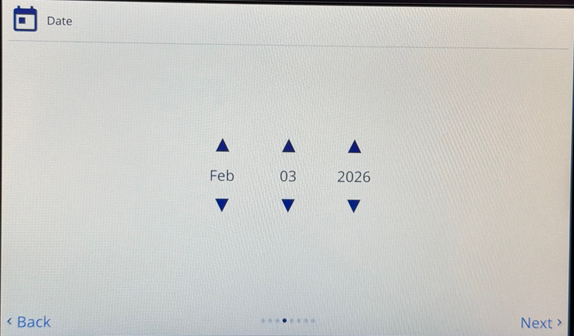
- Use the arrows to change the month, date and year.
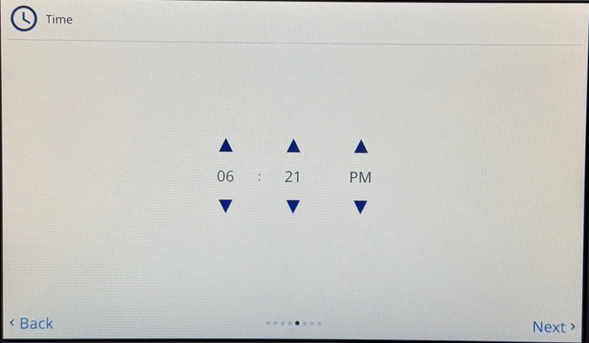
- Use the arrows to increase the hour, minute and AM/PM.
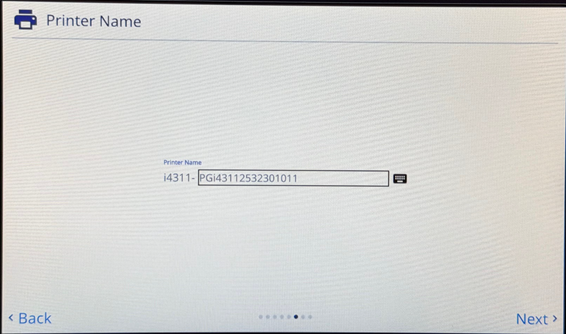
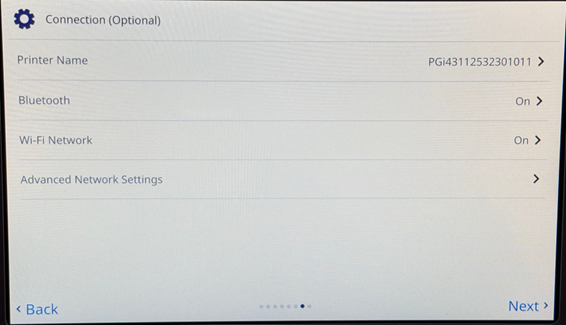
- Adjust the printer name if needed. Tap Next.
- Connection options display. If needed, tap options for Bluetooth, Wi-Fi Network and Advanced Settings to set up the printer.
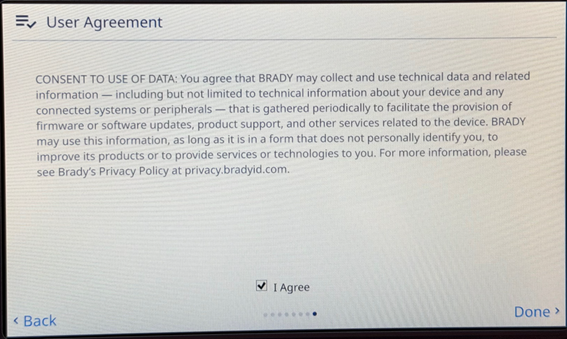
- Tap the checkbox for I Agree and tap Done.
Finding Your License
This will determine which suite to download. Installing the wrong suite for your license will result in the "invalid license" error.
- If you already have your license and password or you're using the free Design & Print Essentials suite, you can skip this step.
- If you know you purchased a license, see this article: How to Find Your Brady Software License
- If you're looking to purchase a license but not sure what to get, you can install and trial any of the suites for 30 days. See the next section.
Find Your Installation Files
These links will provide the installation files for each respective suite of apps. Even if your software came on a disk, we recommend installing using the links below which provide the latest bug fixes and features. These installations will launch as an unactivated 30 trial until you enter your license information. Make sure to download the correct suite that corresponds with the license information you located in the first step. If you're not sure which suite you should buy: How to Find Your Brady Software License.
Installing Brady Workstation
If you've installed any software in Windows 10 before, this setup will be straightforward. If you'd like step-by-step instructions, see the next section.
Activating Your Brady Workstation Suite
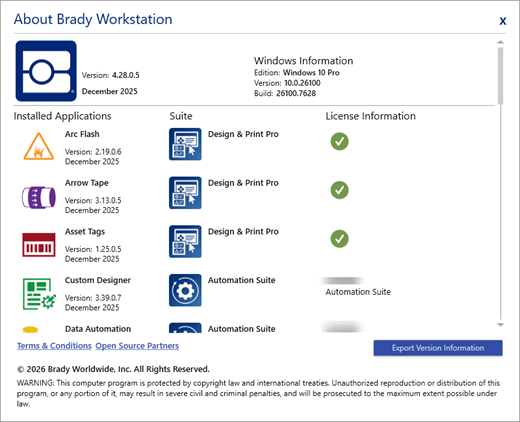
Once Workstation is installed, simply launch any of the paid apps in your suite (for example, Custom Designer) and enter your license information. Activating a single app activates all paid apps in the suite. For detailed instructions see: How to Activate Your Brady Workstation Suite License.
Connecting the i4311 to Your PC
The i4311 does not require a driver for use with Brady Workstation. The i4311 can be connected to Brady Workstation via USB, ethernet or WiFi connectivity options.
USB - Simply connect the square end of the USB cable into the square USB type-B port on the printer. Then connect the rectangular USB type-A end of the USB cable directly to your PC. Don't connect the printer to a docking station or USB splitter, connect it to a part directly on the PC.
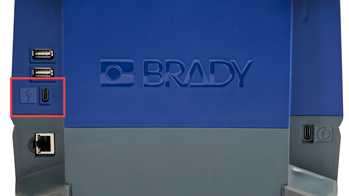
Network - Ethernet & Wifi
If you are not an authorized network administrator for your company, we do not recommend attempting to setup a device on your network without contacting your IT. Brady Technical Support cannot add devices to your corporate network. Reference these articles to configure the i3300 for a network connection in Brady Workstation:
Loading Label Material Into the i4311
The i4311 is a thermal transfer (THT) printer, this means it requires label material and a corresponding thermal ribbon. The i4311 takes only Brady materials formed around drop-in cartridges.
Review the following article to view instructions on how to install labels and ribbon in the i4311: i4311 - How to Load Labels and Ribbon.
Creating Your First Label
In this step we'll create a very basic label and print it to the i4311. This simple test will confirm the printer is loaded correctly, has a good connection to the PC, and the software can detect the printer.
i4311 and Brady Workstation Support Resources
This knowledge base contains thousands of articles to address error messages, how-to processes and workarounds for your i4311 and Brady Workstation. Use the links below to get started.
Everything you need to operate your i4311: i4311 - General Information
Brady Workstation Tutorials and How-to Articles:
Software and Licensing FAQ
Q: What if I need more people to create labels, do I need to purchase more licenses?
A: Licenses can be active on one PC at a time, however Brady Workstation's functionality is versatile and some options exist for free/trial use. See this article to determine if additional licensing is the best option for your needs: Brady Workstation - Pricing and Licensing Multiple PCs
Q: Is this license a subscription or one-time purchase?
A: Workstation licenses are one-time lifetime purchases. You can transfer your license to a new PC: Brady Workstation - Transferring App or Suite Licenses
Q: What if someone leaves and I need to recover or re-register my license?
A: The software self-service portal provides license holders the option to manage their own license information without contact Brady Technical Support. See this article for all functionality available in the self-service portal: Managing Your Licenses in the Brady Software Self-Service Portal
Troubleshooting
This covers only a few of the most common problems new users face, use the search functionality of this knowledge base if you're experience a specific error message or symptom.
I clicked print and nothing happened
Check the printer first - does it have any error messages? Can it feed labels? Then work your way back to the PC checking each component - USB/network connection, selecting the right printer in the software. See this article for detailed troubleshooting: Unable to Print from Software - Troubleshooting Driver Communication Issues
Workstation says "Warning, unknown part"
This error occurs when the software cannot establish bidirectional communication with the printer. With the i3300 this will be more common with network connections, since networks may block bidirectional communication protocols. Bidirectional communication is not required to print labels, but it can be an indicator of communication issues: Troubleshooting Bidirectional Communication Issues
When I try to launch the driver or software nothing happens or I get a prompt for login credentials
This usually means you don't have rights to install software or drivers on your PC. Reach out to your IT admin: Microsoft UAC - Why Do I Need to Run Brady Driver and Software Installs logged in with Admin credentials and using "Run As Administrator"


