The Bluetooth status light symbol is solid blue when at least one device is connected. Up to four mobile devices can be connected at a time.
Note: The Express Labels mobile application must be version 3.1.0 or greater.
- Turn on the printer. Bluetooth may automatically be enabled on the printer while it is powered on. If Bluetooth is not on, follow the instructions below.
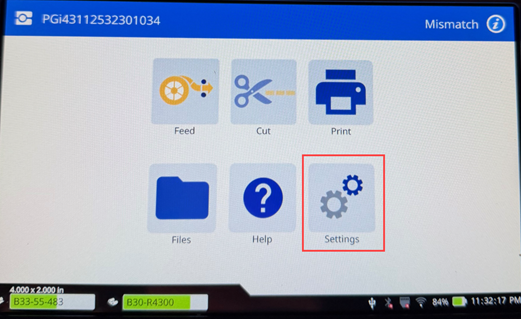
- Tap Settings.
-
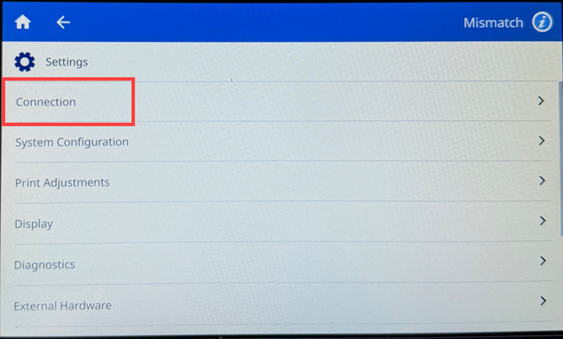
- Tap Connection.
-
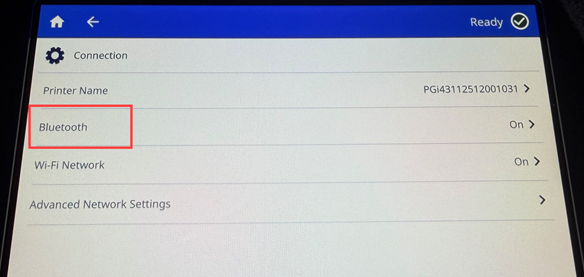
- Tap Bluetooth.
-
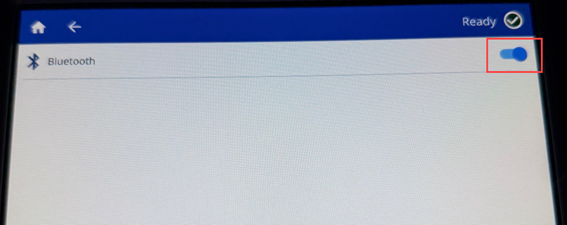
- Tap the switch to turn Bluetooth On or Off.
- Open the Brady Express Labels application on your mobile device.
- If no other printer is currently connected to the Express Labels app, Express Labels will automatically detect the new printer.
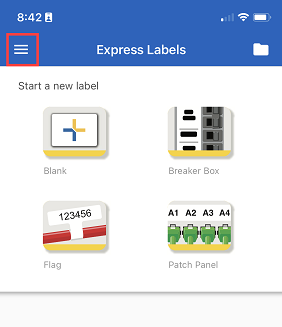
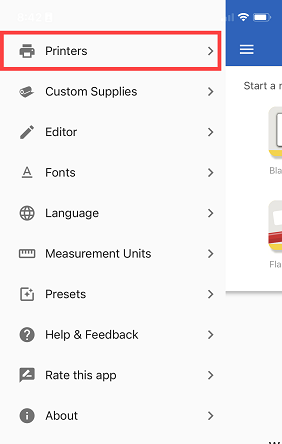
- If another printer is currently connected to the Express Labels app, you will need to manually add the printer. Do this by tapping the drop down menu on the top left of the application, then tap Printers, then tap the yellow + icon to add a new printer.

- Select the Menu on the top left of the home screen.
- Select Printers.
- Scroll down to the bottom of the menu, it might take around 10 seconds for your printer to appear. If the printer does not automatically appear, select the yellow circle in the right-hand corner.
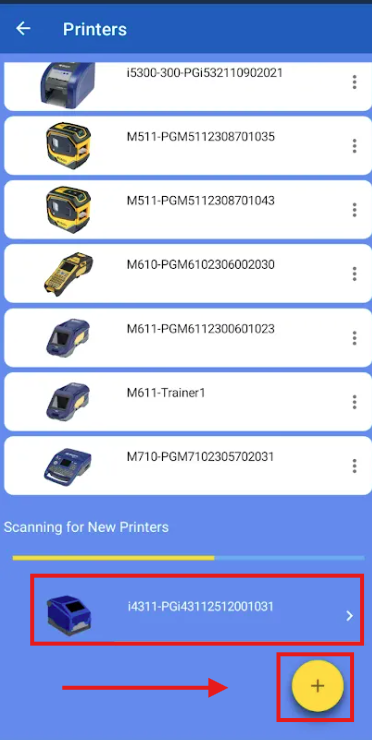
- Proceed to step 11 if your printer was found automatically.
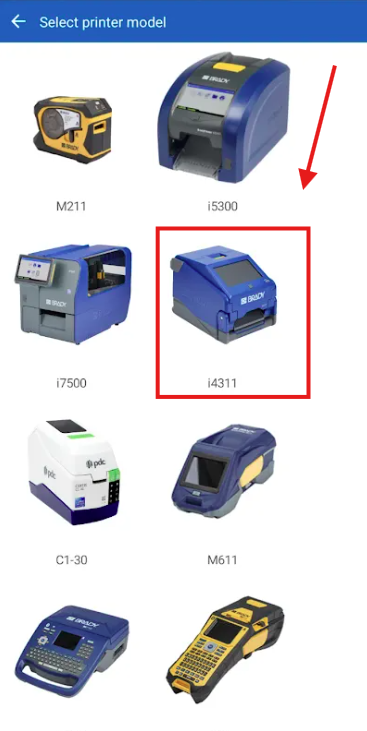
If you selected the yellow circle to manually add the printer, select the i4311 printer from the list of printer options.
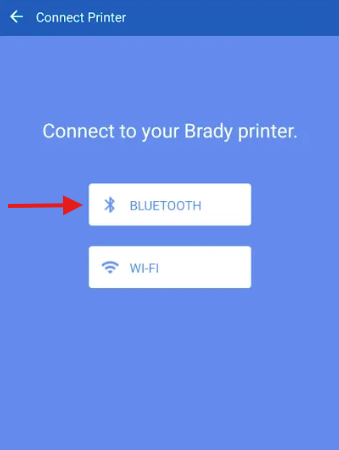
- Select Bluetooth.
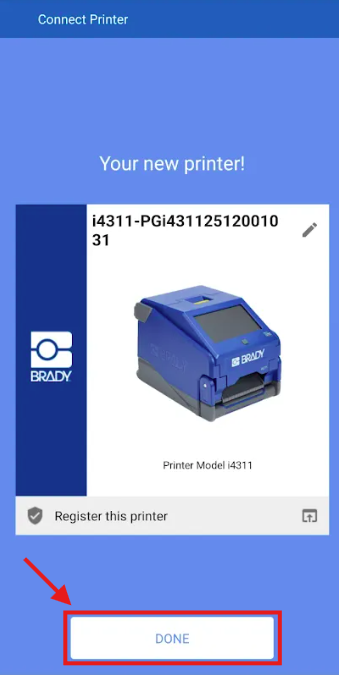
- Select Done after the connection between the printer and Express Labels Mobile app is established.
Related Information


