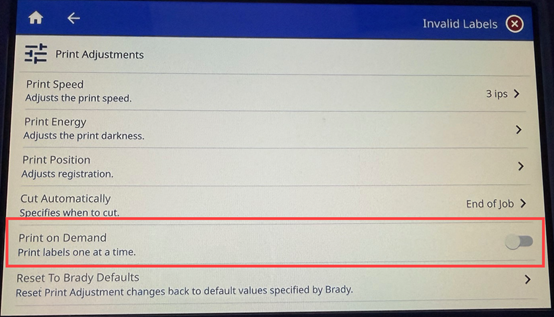
Print on demand causes the printer to wait for input on the touchscreen before printing the next label in the file. When disabled, all labels in a file are printed without waiting in between.
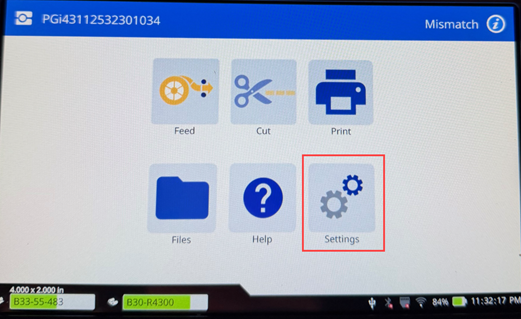
- Tap Settings.
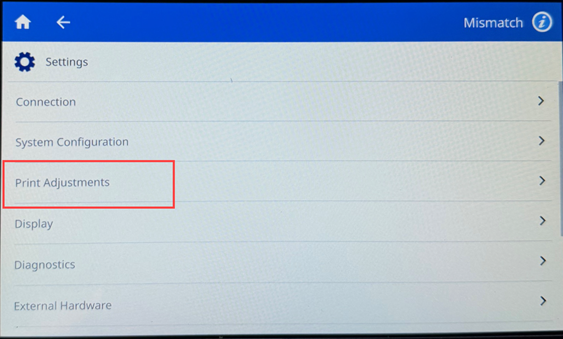
- Tap Print Adjustments.
- Tap the switch for Print on Demand.
If the switch is blue, the setting is enabled. If the switch is gray, the setting is disabled.
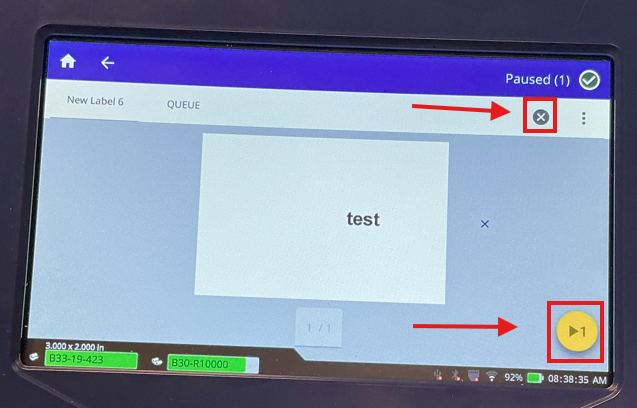
Once the printer receives the print job, print preview appears on the printer display. To print the next label, tap the yellow button on the bottom right. To cancel a print job, select the x in the top right corner.
Related Information


