ZPL (Zebra Programming Language) is capable with specific Brady printers: Brady Printers - ZPL Manual.
*These instructions will be for Windows 11 computers. The instructions will vary with different versions of Windows.*
To get started printing ZPL files, we will need to create a batch file and ZPL file. (You can also use the example ZPL file that is attached to this article) Both of these files need to exist in the same folder on your computer.
Note: If using the i7500 printer, a Batch File is not needed if using the i7500 driver: i7500 - ZPL Scripting
The BBP12 printer can use the Diagnostics Tool: BBP11 and BBP12 - Diagnostic Tool Download
i6100 has a web browser interface: i6100 - Printing ZPL Labels via Web Browser
Initial Setup
- Create a new folder on your desktop, or in a location that is easy to find.
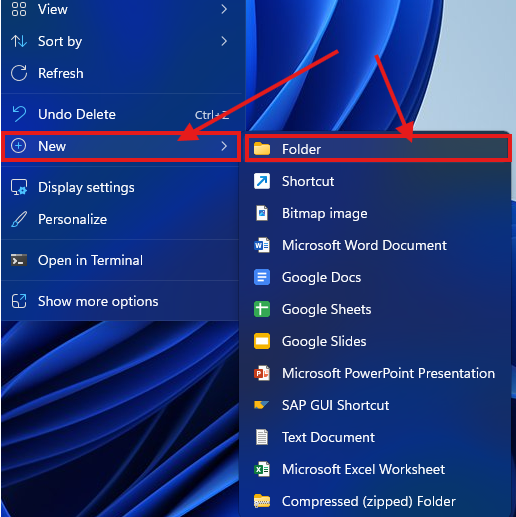
- To create a new folder on the desktop, right click anywhere in the open space on your desktop.
- Click "New".
- Click "Folder".
- A new folder will appear on your desktop.
- The name of the folder does not matter.
- Double click your folder to open it.
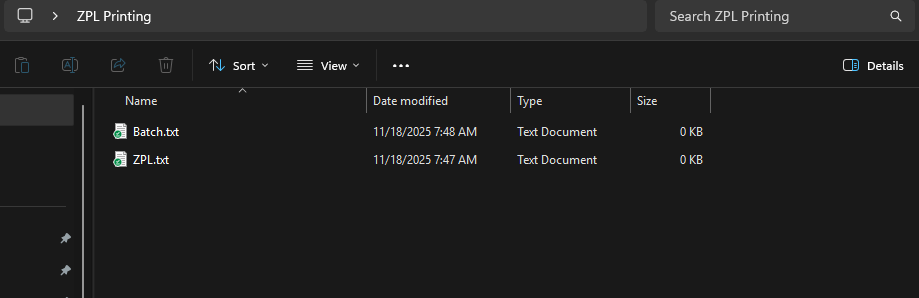
- Inside of the folder, we will need to create two text document files.
- Right click anywhere in the blank space inside of your ZPL folder.
- Click "New".
- Click "Text Document".
- The first file will be our ZPL file, name the file accordingly.
- Repeat these steps for your Batch file.
- You should now have two desk document files as shown below.
- Make sure file extensions are enabled on your computer.
- In the new folder we created, click the view menu option at the top.
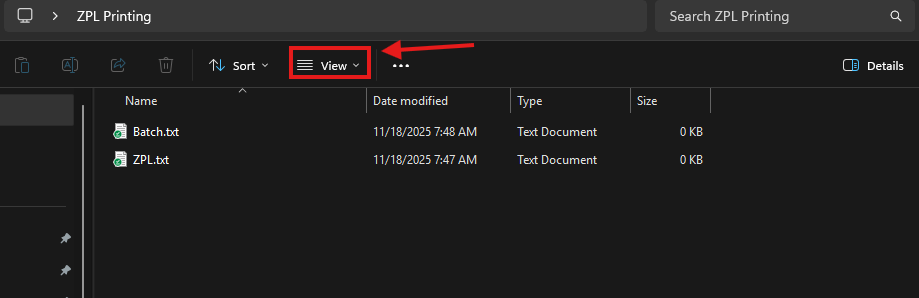
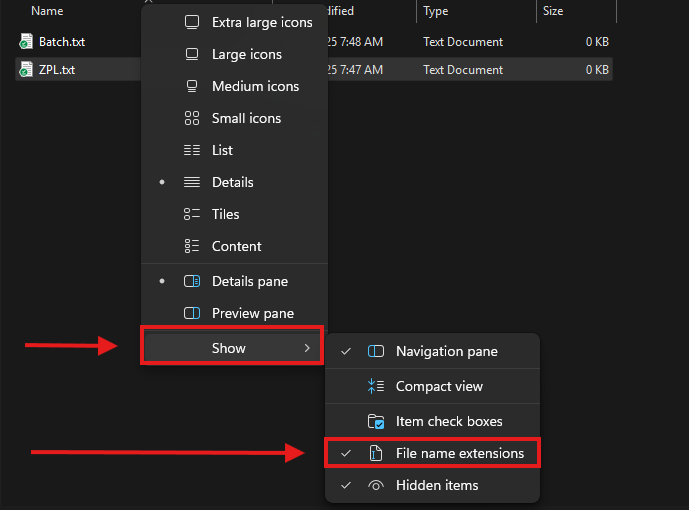
- A sub menu should appear. Windows 11 users will need to click on the "Show" menu option at the bottom of the sub menu.
- Click on "File Name Extensions". A checkmark will appear to the left of the option to indicate it is enabled.
- Now we need to change the two text files we created to one ZPL file and one Batch file.
- Right click on the text file that will contain your ZPL code.
- Click "Rename".
- Replace the ".txt" with ".zpl".
- A warning message will appear indicating that the file type is about to change. Click "yes" to continue.
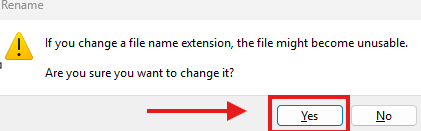
- Repeat these steps for the Batch file. The extension should be changed to ".BAT" instead of ".ZPL"
- Your ZPL folder should contain two files at this point as shown below.

Setting Up The Batch File
- Open the batch file we created in the ZPL folder. (The file with the .BAT extension).
Note: You will need to right click on the Batch file and click "Edit in Notepad".
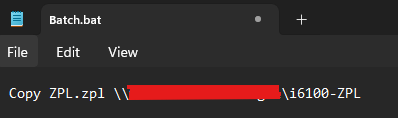
- The .BAT file will contain a one line command with the following formatting (Make sure your spacing matches the example, or it may not work):
Copy [ZPL File Name] \\[Full Device Name]\[Share Name of Printer]
or
Copy[space]“file name”[space]\\”Full Device Nam”\”share name”
-
- To find the full name of your computer, type "About" in the windows search bar on the bottom of your screen.
- Click the option that says "About Your PC".
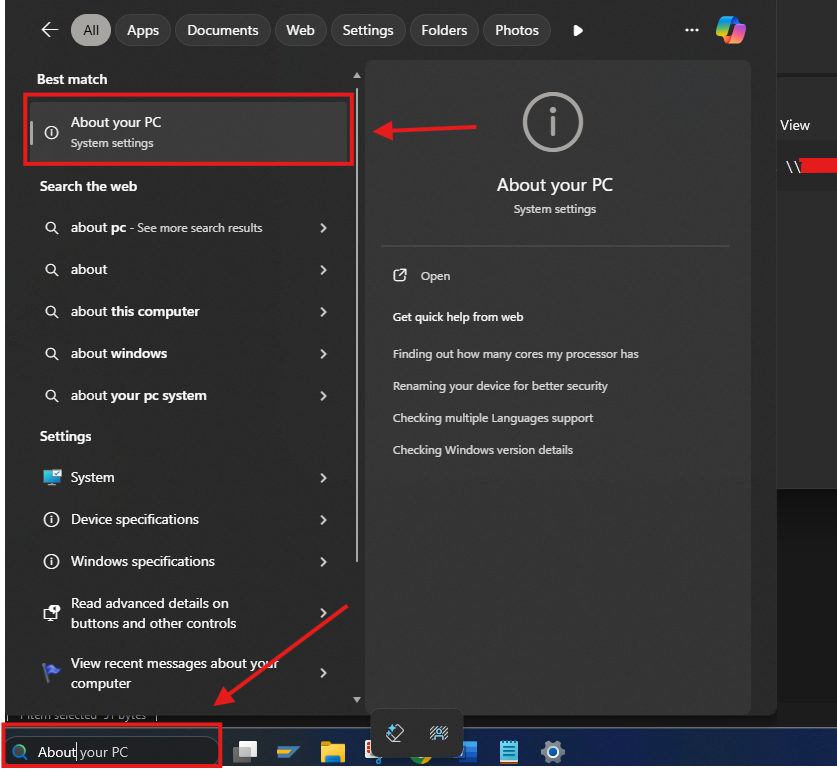
- Locate "Full Device Name".
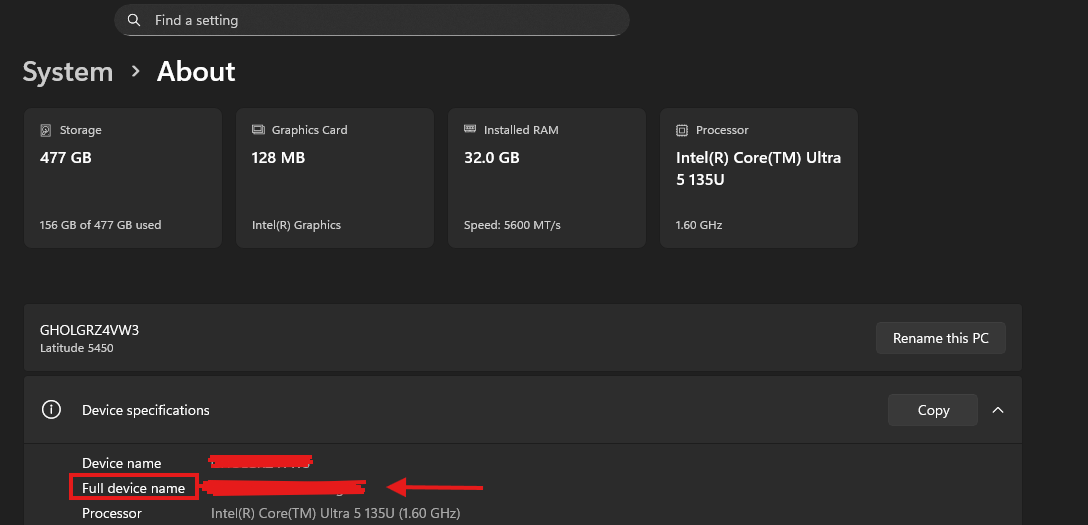
- The Share Name of your printer can normally be found in the driver.
- Navigate to the "Printers & Scanners" Windows application. If you do not see your printer in this list, ensure that the driver is installed. The drivers for all Brady printers can be found here: Brady Printer Drivers
- The drivers for 3rd party printers will need to be located on the manufactures website.
- Locate your printer in the list and left click the printer.
- Click on Printer Properties
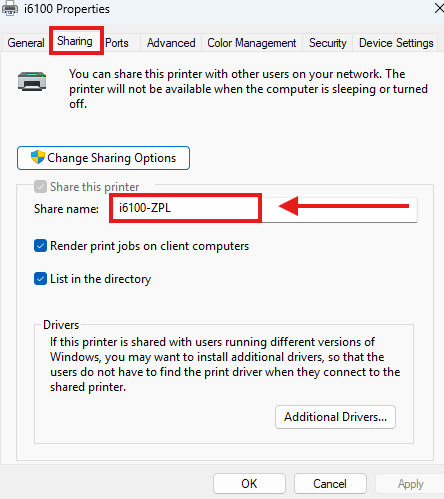
- Click on the "Sharing" tab on the top.
- The Share Name will be located within this tab:
- This is what your batch file should look like once finished (Full computer name crossed out for security purposes).
Printing
- To send a print job to the printer, double click the batch file from the folder you created. This folder should contain your ZPL and Batch files.
- After a few seconds, your printer should feed out a printed label.
If the labels do not print, verify the following:
- The commands used are supported:
- Try the test file attached to this article.
- Shut down the computer and turn it back on.
- Try a different USB port.
Brady Technical Support is not trained on formatting ZPL files. For any error messages, If the labels still do not print, or if there are other issues, contact Global Brady Technical Support Contact Information.
Related information


