i4311 Firmware Upgrade
The i4311 firmware can be updated in three different methods that will be highlighted below.
Important: Do not power off your printer while it is in the middle of a firmware update.
For information on the latest firmware version, view the document in the Files section.
View Current Firmware Version
Before updating your printers firmware, compare your printers firmware version with the most updated version on BradyID.com
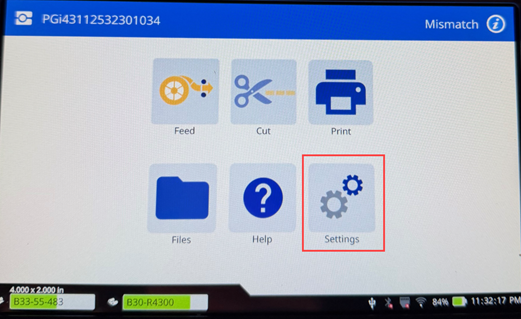
- Press the Settings icon on the printer display.
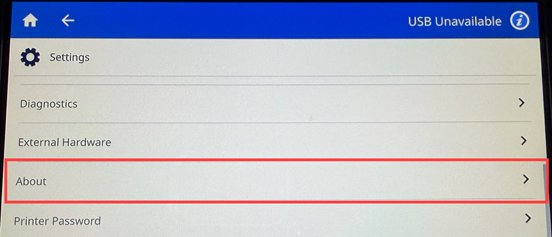
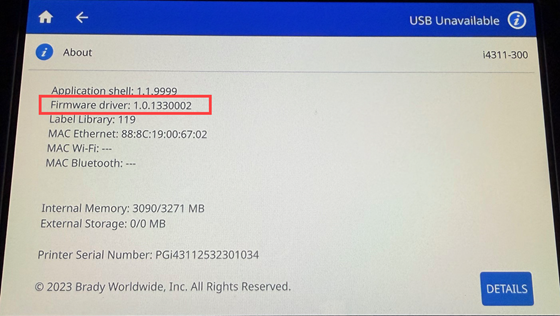
- Tap About. The firmware version will display.
Important: If the firmware version on the printer is greater than the firmware version available on BradyID, do not attempt to downgrade the firmware.
Upgrade Using Brady Workstation
- Connect the printer to the computer.
- Open Brady Workstation.
- Click on the Printers application on the bottom.
- If your printer is connected via a USB-B cord, it appears under the Brady Printers section on the top half of the page.
If the printer is connected via Ethernet or Wi-Fi, it appears under the Brady Managed Network Printers. Refresh the list if the printer was connected recently.
- Select the More Actions button.
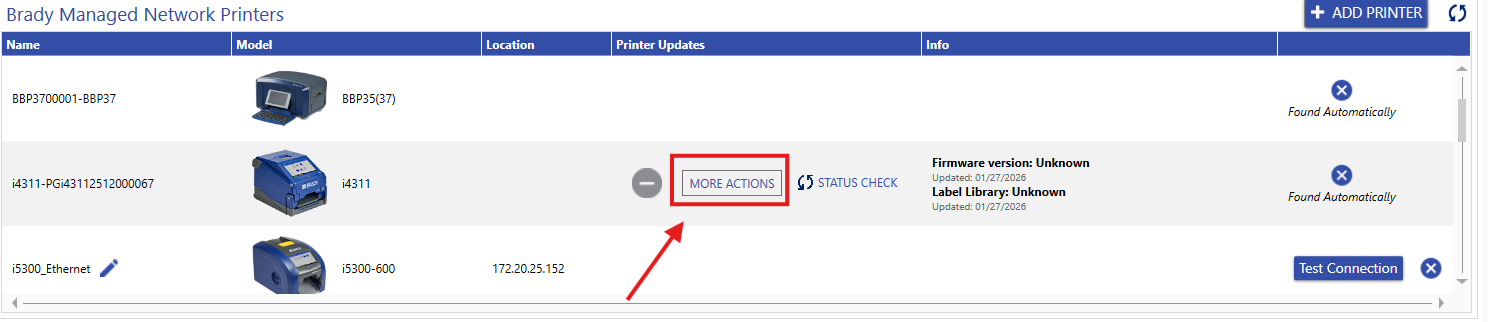
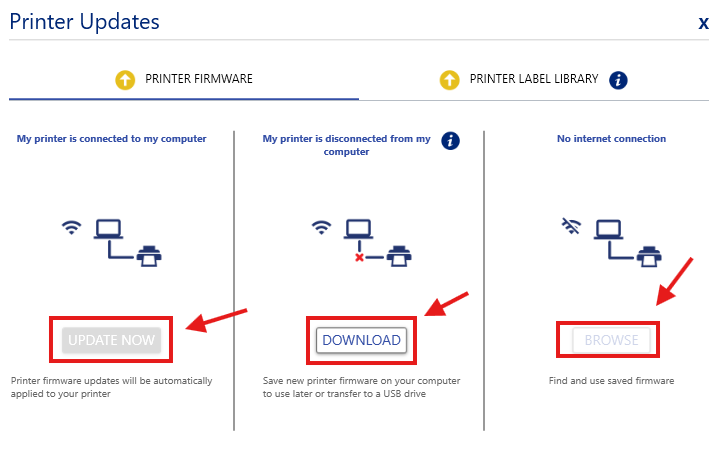
- If the printer is currently connect, click Update Now to upgrade the firmware.
If the printer is not connected, select to Download the file and upgrade the firmware later.
If the computer is not connected to the internet and a firmware file is saved on the computer, click Browse and find the file.
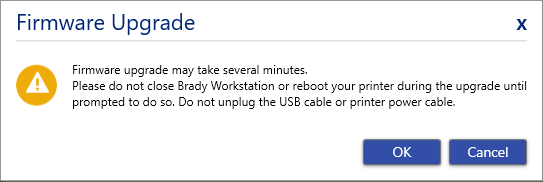
- Click OK to upgrade the firmware. Do not disconnect the printer.
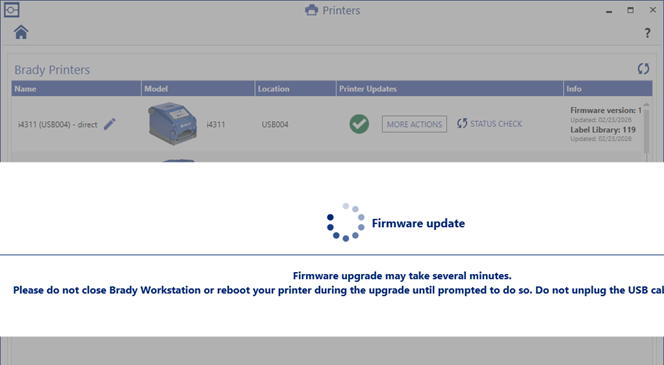
- The firmware update will begin.
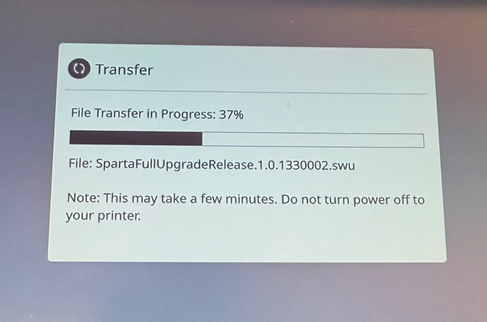
- Once the update is completed, reboot your printer if it does not do so on it's own.
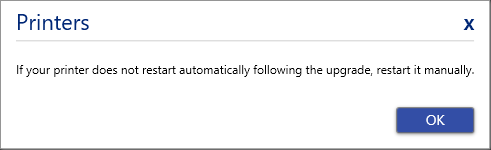
Upgrade Using a USB Thumb Drive
Requirements
- USB flash drive
- 4GB or smaller
- Formatted FAT32
- Insert a USB thumb drive into your computer.
- Navigate to BradyID and download the most recent firmware file.
- Click the blue download button on the bottom of the page. The firmware update files will be sent to your downloads folder on your computer.
- Right-click on the zipped firmware updated folder and click Extract All.
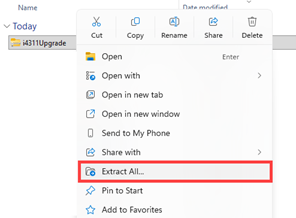
- Extract the files to the root directory of the USB drive. The contents of the upgrade files should not be in any folders that were not created by Brady.
- Connect the USB drive to one of the two USB-A ports on the back of the printer.
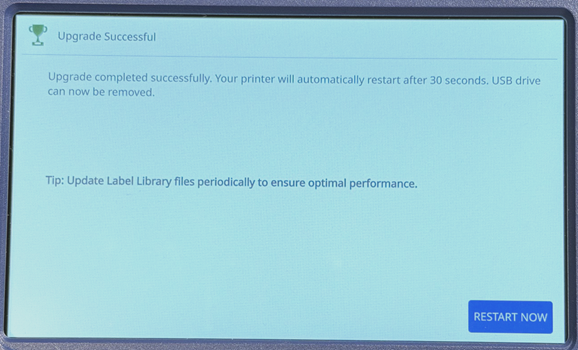
- A message will pop-up on the screen of the i4311. Tap Upgrade.
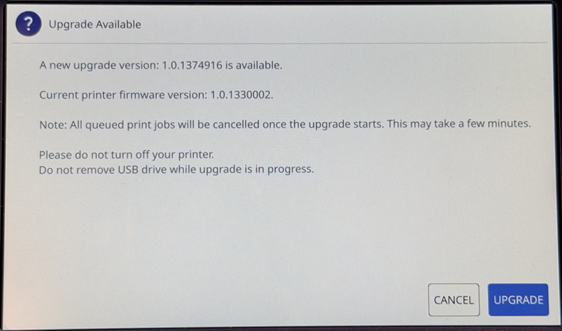
- Wait while the firmware upgrades. DO NOT disconnect the cable or turn the printer off.
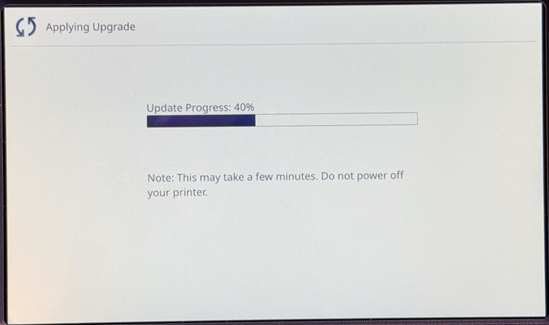
- Press Restart Now.
Upgrade Using the Embedded Web Service
- In a browser, open the Embedded Web Server (EWS) by entering the printers IP address. i4311 - How to View IP Address.
Note: The computer in which the EWS is being used must be on the same network as the printer.
- From the homepage, navigate to Firmware. A yellow up arrow icon will appear if there is an update available.
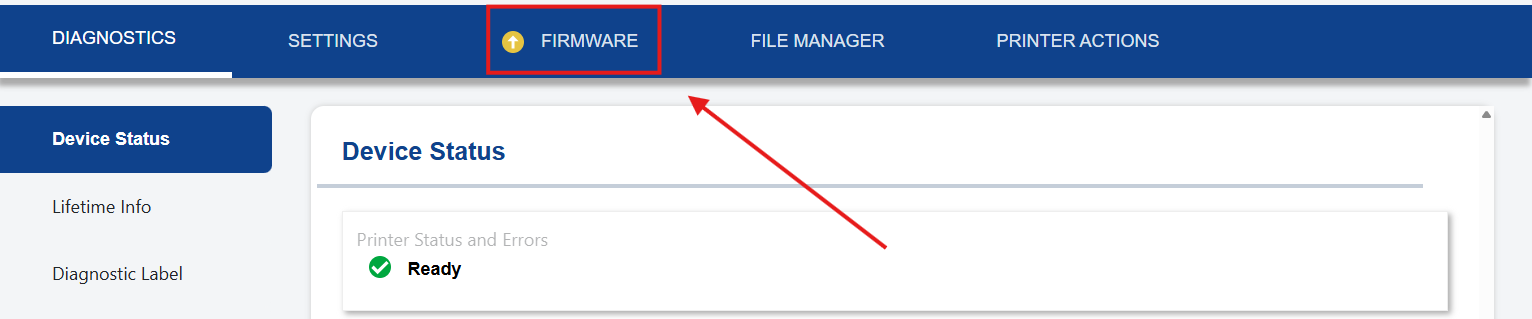
- Click Update Now if the version number that is available is higher than the version number on your printer.
The firmware only for that specific printer will be updated.
Note: Upgrades via Bluetooth are not supported.
IMPORTANT! If power to the printer is interrupted during an upgrade, the upgrade may not start or complete successfully. To recover, use a USB drive to finish the upgrade.
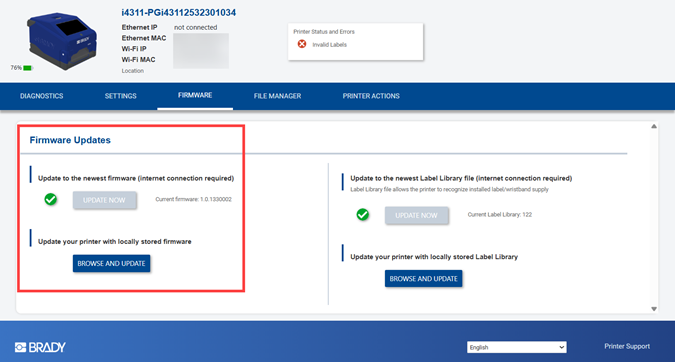
In the example above, the firmware was on the most recent version at the time of the image so the firmware cannot be updated.


