The printer’s Label Library files are included in a database of information that enables the printer to work optimally with various supplies. Update Label Library files periodically to make sure the printer has data for any new label supplies. Also, update if you have ordered a custom label supply from Brady and it came with new Label Library files.
View the Current Label Library Version
-
Before updating your printers label library, compare your printers version with the most updated version on BradyID.com
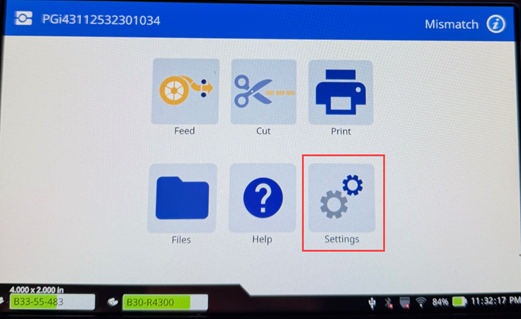
- Press the Settings icon on the printer display.
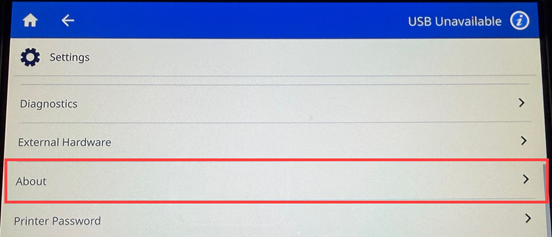
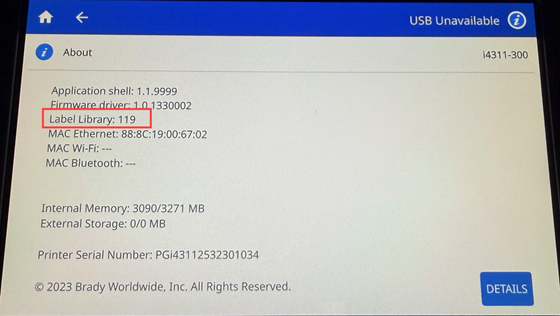
- Press About. The Label Library version will display.
Important: If the firmware version on the printer is greater than the firmware version available on BradyID, do not attempt to downgrade the firmware.
Upgrade using Brady Workstation
- Open up the Brady Workstation Software on the same computer the printer is connected to.
- On the Brady Workstation home screen, click the Printers icon on the bottom of the screen.
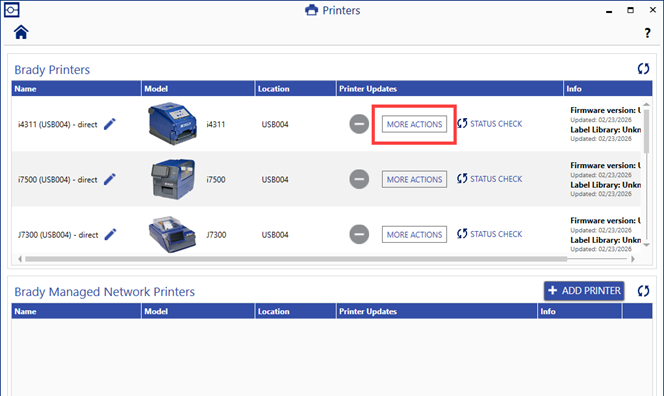
Brady Workstation will automatically detect and display the current label library file on the connected printer and will display a MORE ACTIONS button.
- Click on MORE ACTIONS to see options for updating the label library file for the connected printer.
- Select Printer Label Library at the top of the screen.
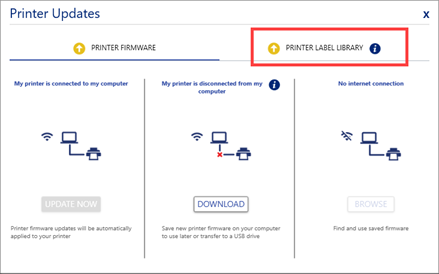
- You will be presented three options for updating your printer's firmware:
-
- Update Now to upgrade the Printer Label Library now.
- Download to download the file and upgrade later on or via USB.
- Browse to locate a file on a computer not connected to the internet.
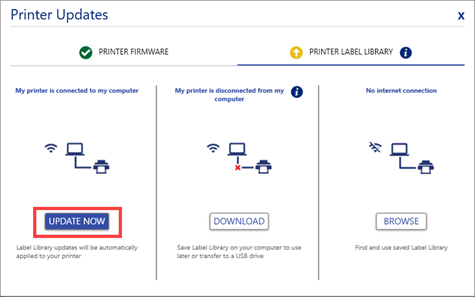
- Click OK to upgrade the Printer Label Library file.
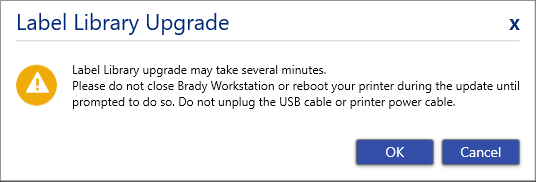
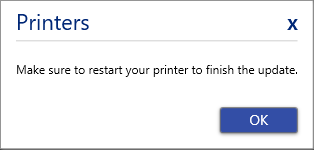
- When the update is complete, restart the printer.
Upgrade Using a USB drive
- Insert a USB drive on your computer.
- Download the Printer Label Library file from BradyID.
- Right-click the file and click Extract All.
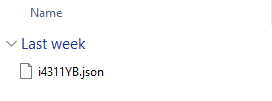
- Copy the JSON file to the root of a USB drive.
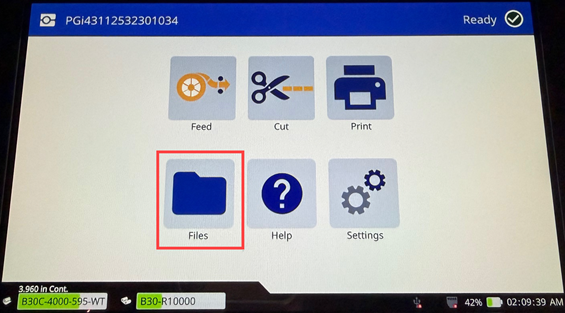
- Connect the USB drive to the USB port on the printer and navigate to Files > Menu.
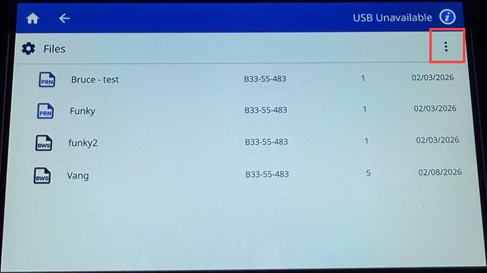
- Tap the three dots.
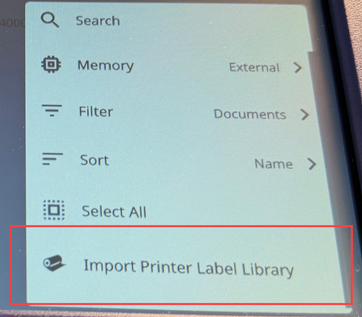
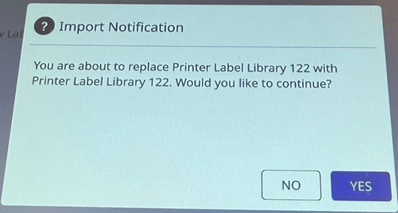
- Tap Import Printer Label Library.
- Tap Yes.
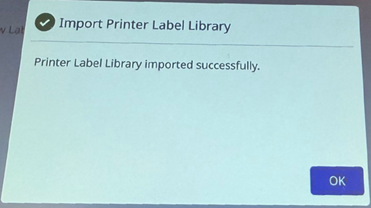
- Tap OK.
Upgrade through the Embedded Web Server
- In a web browser (Google Chrome, or Microsoft Edge) open the embedded web server by entering the printer's IP address.
Note: The device on which the embedded web server is being used must be on the same Wi-Fi network as the printer. i4311 - How to View IP Address.
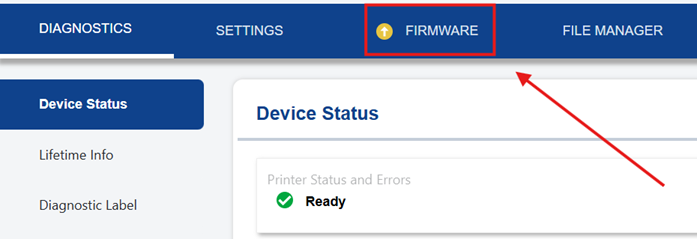
- Navigate to Firmware.
- Click Update Now. If the option is grayed out, the printer is not connected.
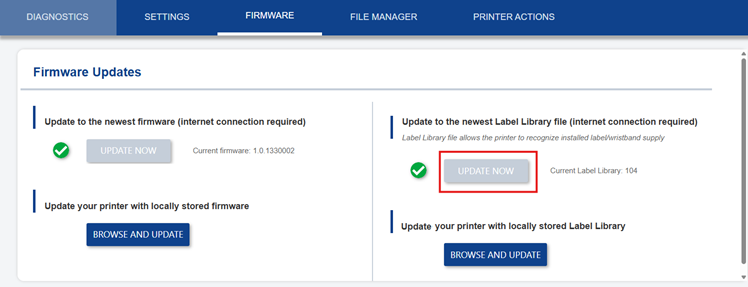
- The label library for that specific printer will be updated.
Note: Upgrades via Bluetooth are not supported.
Related Information


