Issue
The printer does not power on when the power button is pressed.
Cause
The battery pack is not charged or is dead or the printer and battery are outside the operation or storage temperature range.
Troubleshooting
- Charge the battery:
The printer is run by a rechargeable lithium ion battery pack. The battery pack is shipped with minimal power, so it is recommended to charge the battery prior to using the printer for the first time. It is recommended to charge the battery for 3-4 hours for a full charge. After the battery is fully charged, press the power button to power on the printer.
To Charge the Battery Pack:
-
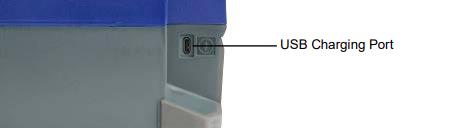
- Plug one end of the USB cable (included) into the charging port on the back of the printer.
-
- Plug the other end into the AC adapter.
-
- Plug the adapter into an AC power outlet. When the battery is charging, a + symbol will appear on the battery icon on the touchscreen of the printer.
Note: Plugging the AC adapter into a power outlet without the battery will not provide power to the printer.
To Charge the Battery Outside of the Printer:
-
- Remove the battery from the printer.
-
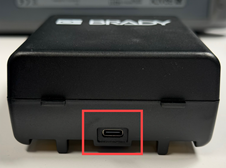
- Plug one end of the USB cable (included) into the battery.
-
- Plug the other end into the AC adapter.
-
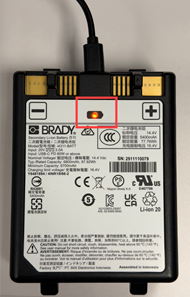
- Plug the AC adapter into an electrical outlet. The orange light on the battery will appear when charging.
-
- When the light on the battery turns green, the battery is fully charged.
- The battery is outside the operating temperature. Bring the printer inside to warm up for a few minutes and try again.

If the issue still persists, contact Global Brady Technical Support Contact Information and provide the serial number of the printer: i4311 - Serial Number Location.
Related information


