Choose whether the printer accesses files from the printers internal memory or from a USB drive.
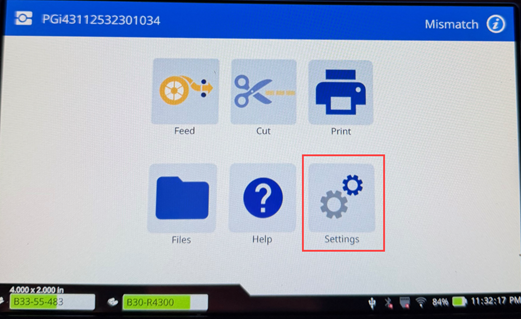
- From the home screen, tap Settings.
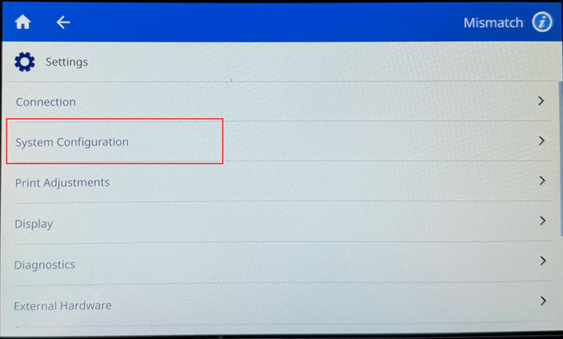
- Tap System Configuration.
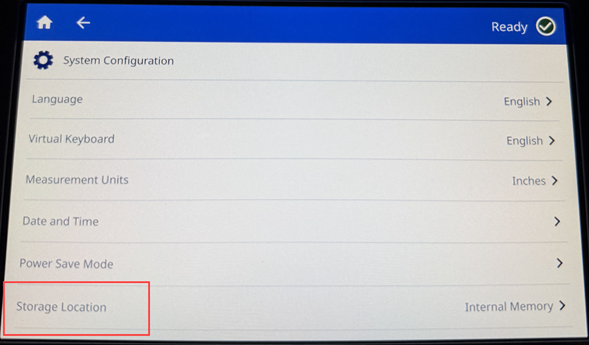
- Tap Storage Location.
- Tap the desired location.
- Internal Memory: Choose this option if the printer is directly connected to the computer with a USB cable or on a network. When you print a label from Brady Workstation software and choose the Store option, the print file is sent to the printer’s internal memory. When you tap Files on the home screen, the printer accesses the list of files from internal memory.
- External Storage: Choose this option when transferring files from one i4311 Industrial Label Printer with Portability to another. Insert a USB drive into the USB port on the printer. When you print a label from Brady Workstation software, the print file is sent to the USB drive. When you tap Files on the home screen, the printer accesses the list of files from the USB drive.
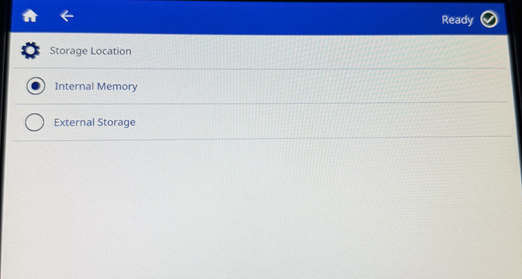
- Your selection is automatically saved. Tap the back arrow to go back to the previous screen or the home icon on the top left.
Related Information


