i3311 Firmware Upgrade
The i3311 firmware can be updated in three different methods. Before updating, check your printer's current firmware version and compare it to the current version listed on www.bradyid.com
Article Shortcut Links
Important: Do not power off your printer while it is in the middle of a firmware update.
For information on the latest firmware version, view the document in the Files section.
How to View the Current Firmware Version
Before attempting to update your printer's firmware, compare your printer's current version to the latest version available on www.bradyid.com
- Navigate to the home screen of the printer.
- Tap Settings.
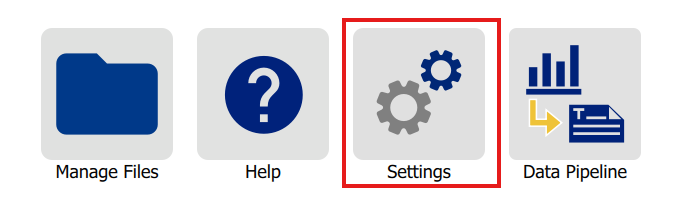
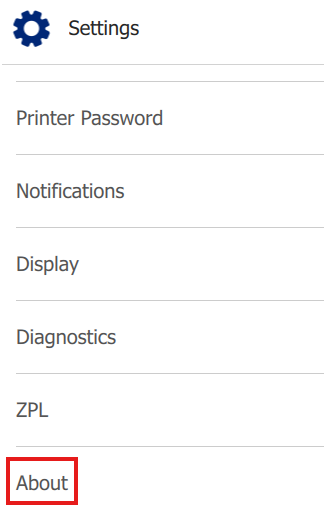
- Tap About.
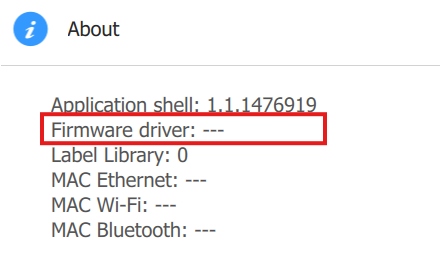
- Your printer's firmware version will be listed next to where it says Firmware Driver.
Updating Through Brady Workstation
- Make sure the printer is connected to the computer via USB, ethernet, or Wi-Fi.
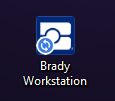
- Open Brady Workstation.
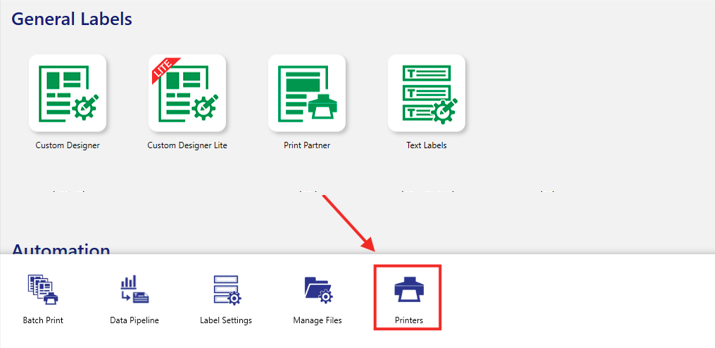
- Open the Printers application.
-
- If your printer is connected via USB, it will appear under the top section marked Brady Printers.
-

-
- If your printer is connected via ethernet or Wi-Fi, it will appear under the bottom section marked Brady Managed Network Printers.

Note: If you don't see your printer or haven't networked it yet, see the following article: i3311 - How to Network the Printer
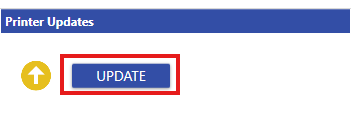
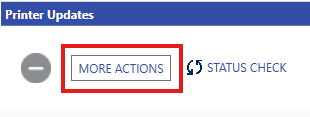
- Select Update or More Actions.
- Make sure Printer Firmware is selected.

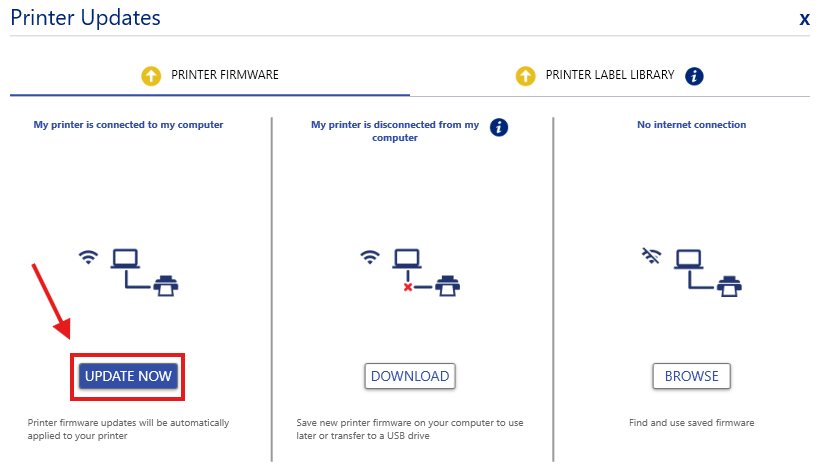
- To have Brady Workstation perform the update, select Update Now.
-
- To download the firmware update to your computer, select Download. If you choose this option, skip to the Updating Through USB Flash Drive section of this article.
- To manually choose a firmware update already saved on your computer, select Browse.
- Select OK to start the firmware update.
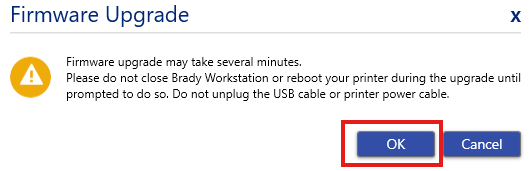
Note: The firmware update could take upwards of 10 minutes depending on the update. Do not turn off the printer while the update is in progress.
- Once the firmware update is complete, power cycle the printer.
Updating Through USB Flash Drive
Requirements:
- USB flash drive
- 8GBs in storage or smaller.
- Formatted FAT32.
Note: The blue USB thumb drive that is included with the printer will work for the update.
- Insert a USB thumb drive into your computer.
- Navigate to www.bradyid.com and download the most recent firmware file.
Note: The firmware update files can be found in various locations on bradyid.com, including the various product pages for the printer, or manually searching for the files via the link above.
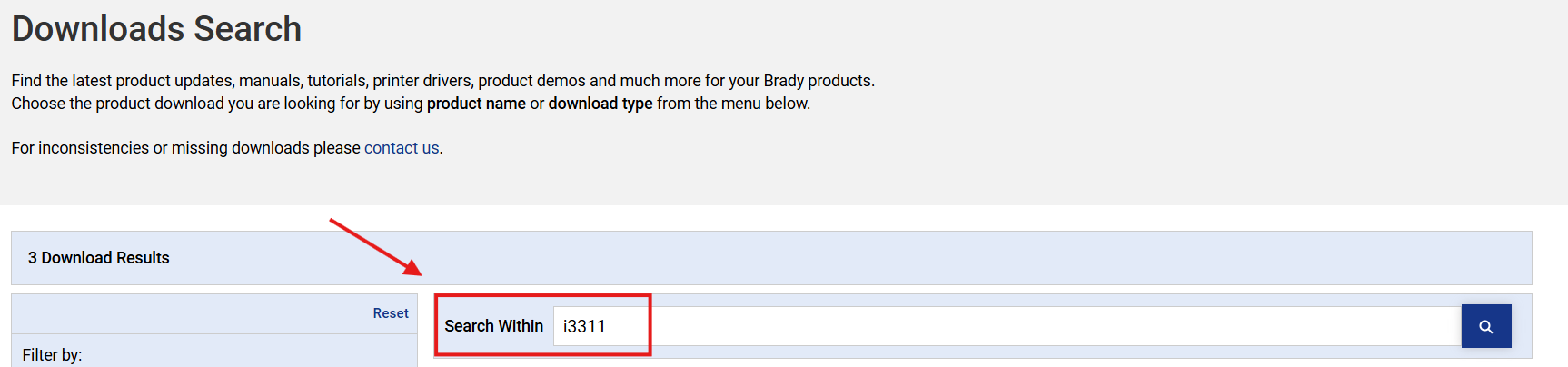
- Once the firmware update file is downloaded, place the file on the root of the USB drive. The file should not be in any folders within the USB drive. The file will download to the downloads folder of your computer.
Note: Do not rename the firmware file or the printer will not see the file once the USB drive is plugged into the printer. Be careful not to download multiple copies of the file, or Windows will change the name of the file by adding "(Copy Number)" to the name of the file.

- Remove the USB drive from the computer.
- Connect the USB drive to one of the two USB-A ports on the back of the printer.
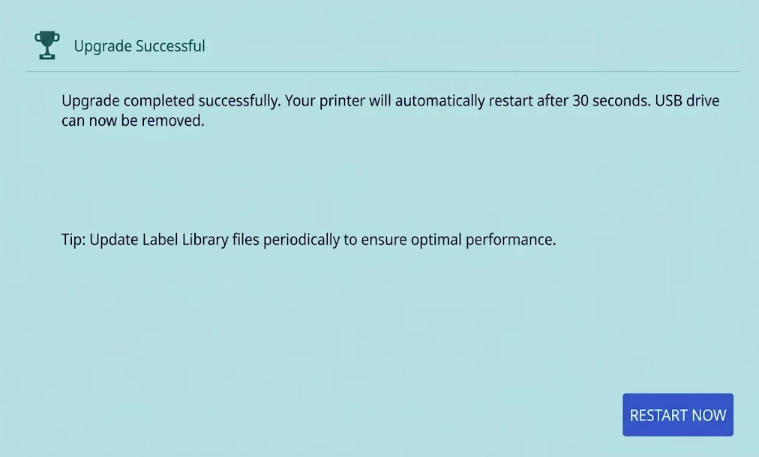
- A message will pop-up on the screen of the i3311. Tap Upgrade.
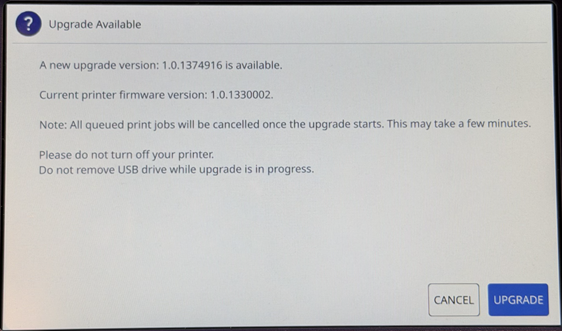
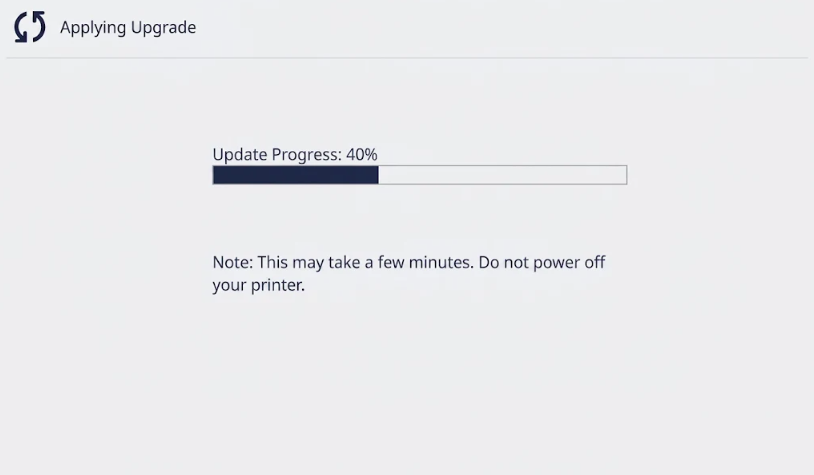
- Wait for the firmware upgrade to complete. DO NOT disconnect the cable or turn the printer off.
- Press Restart Now.