Bluetooth Connection Setup
The i3311 can only connect to a mobile device via Bluetooth. Up to four mobile devices can be connected to the printer at a time.
- If you haven't already, install the Express Labels mobile application from your phone's app store.
Note: Verify your phone settings have permissions enabled for the Express Labels mobile application.
- Turn on the printer.
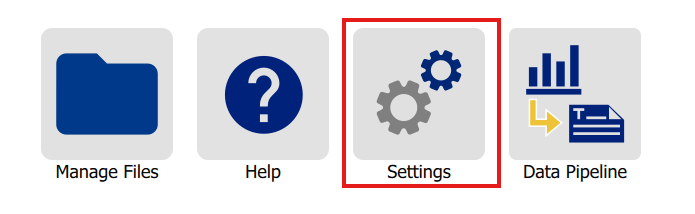
- Tap Settings on the printer.
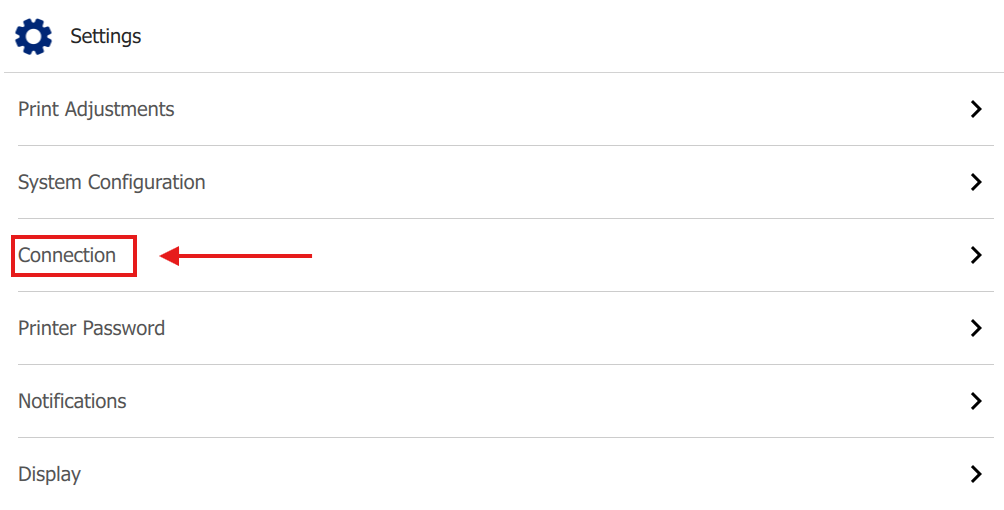
- Tap Connection.
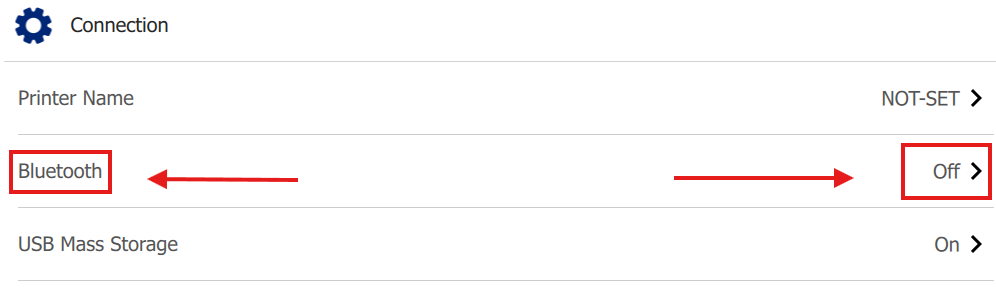
- Enable Bluetooth.
- Enable Bluetooth on your phone.
- Open Express Labels Mobile on your phone.
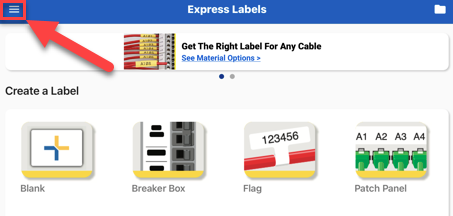
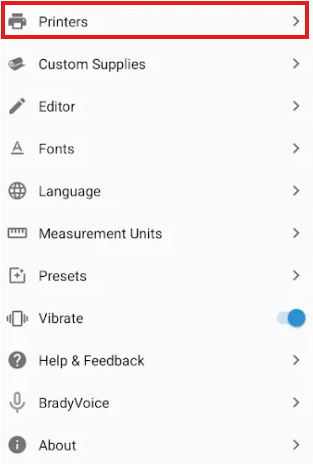
- Select the menu icon.
- Select Printers.
- The printer should appear underneath the Your Printers section.
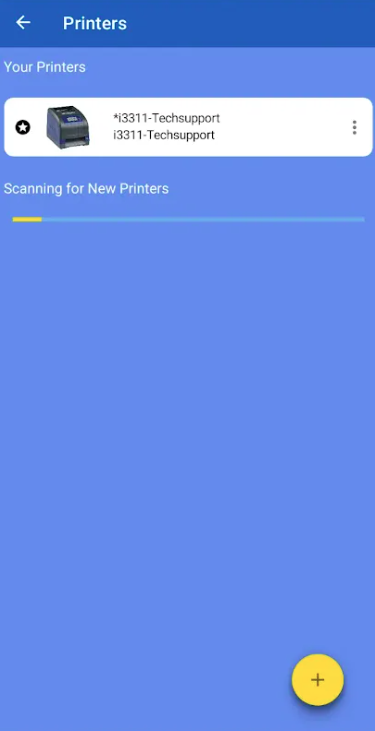
- Select your printer.
- Select Bluetooth.
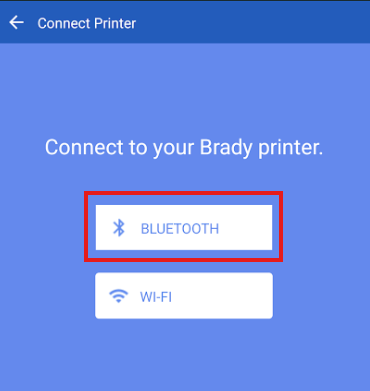
- Change the name of the printer or register the printer.
- Tap Done.
- Create a test label and print it out: Express Labels Mobile - Create a Basic Label File
Related Information