Create an Arc Flash Label using Layouts in Custom Designer
The Arc Flash layouts are in 5 different languages: English, Spanish, French, German and Dutch.
- Open Custom Designer in Brady Workstation.
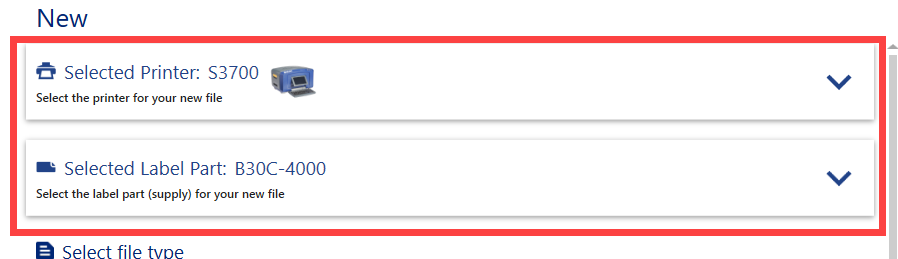
- Select your Printer and Label Part.
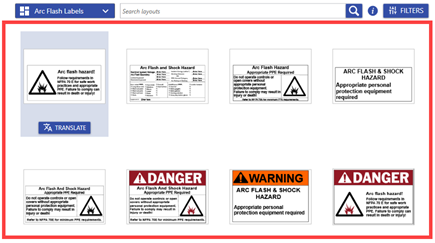
- Click the dropdown arrow and select the Arc Flash layout in the dropdown.
Note: The text that displays may be different depending on the last layout selected.
- Select the Arc Flash layout image in the list.
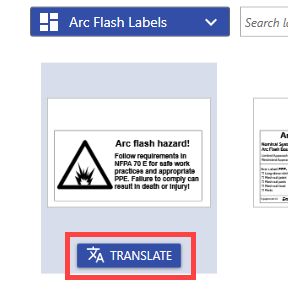
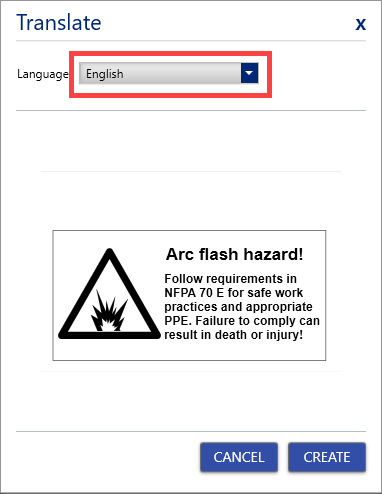
- Translate: To translate the label, click Translate. If translate is not needed, proceed to the next step.
-
- Click the Language drop-down and select the corresponding language: English, Spanish, French, German and Dutch.
-
- Click Create.
-
- Proceed to step 6.
- Select Create.
- Update text and adjust label properties as needed: Text Labels / Custom Designer - Applying Text Properties to Existing Labels.
Note: If you import data from an excel file or add a sequence, you will have to import it in place of an object/text on the label or add it below the label and drag it onto the label. If the outline is red, you cannot import data in that spot. If the outline of the area is green, you are able to import data.
If you import data onto the label to replace an object/text, select Yes to replace the content already on the label.
- Print the label.



