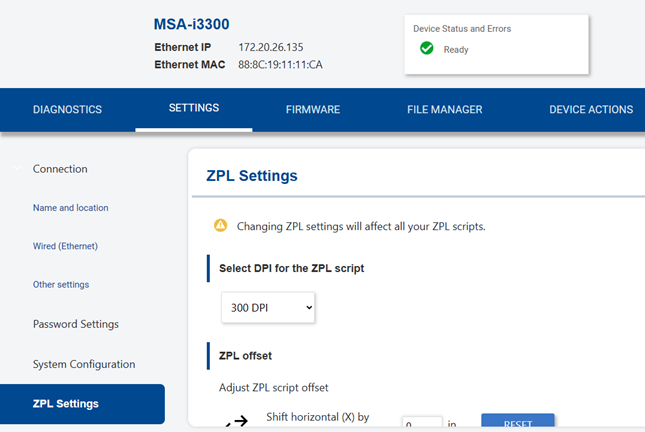
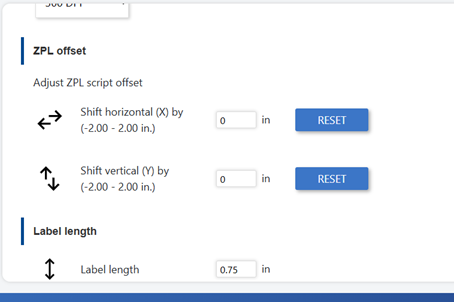
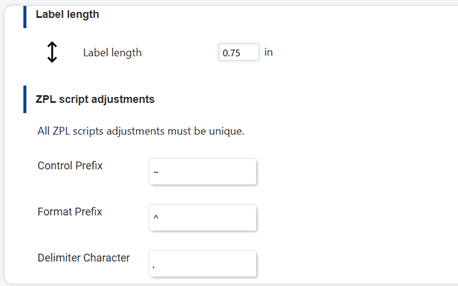
Open the embedded web server by entering the IP address in the browser. The emulator must be configured on the phone or computer: Brady Script Emulator for ZPL - Set Up the Emulator.
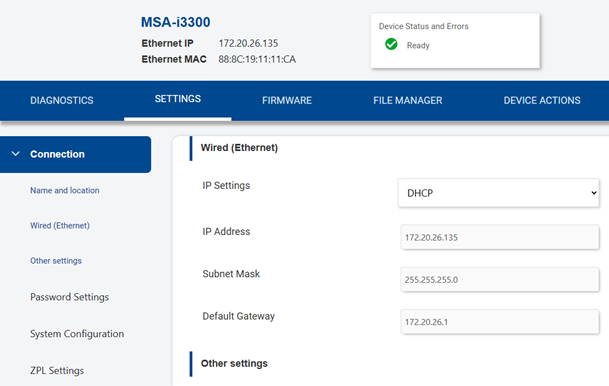
Connection > Wired (Ethernet) > IP Settings
With IP Settings set to DHCP, as most networks are, the device's IP address will change periodically. Choosing Static instead, if allowed on your network, will provide a consistent IP address for sending scripts and opening the embedded web server.
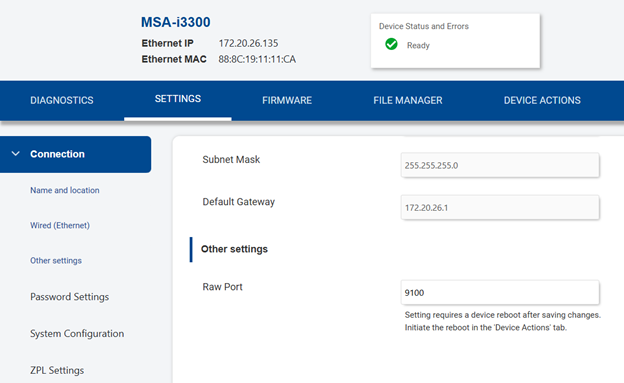
Connection > Other settings > Raw Port
This is the port to send ZPL scripts to.
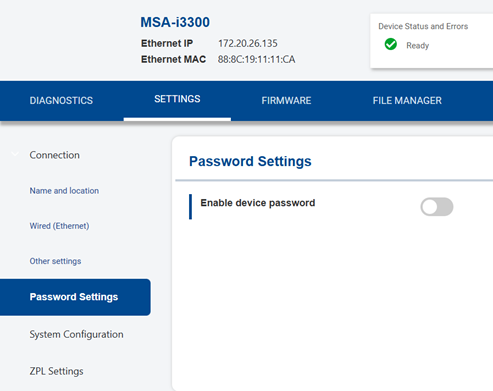
Password Settings
Enable and create a device password if you want to require a password to log in to the embedded web server for this Brady Script Emulator for ZPL.
- Click the button to turn on the password.
- Enter the password in the New Password and Confirm Password textboxes.
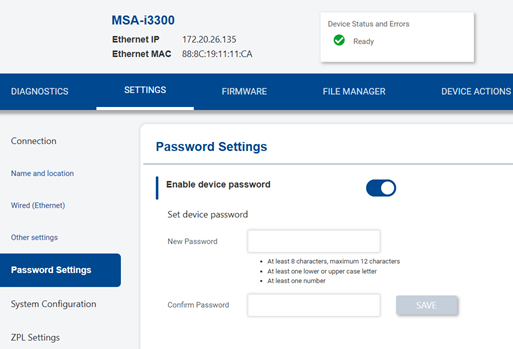
- Click Save.
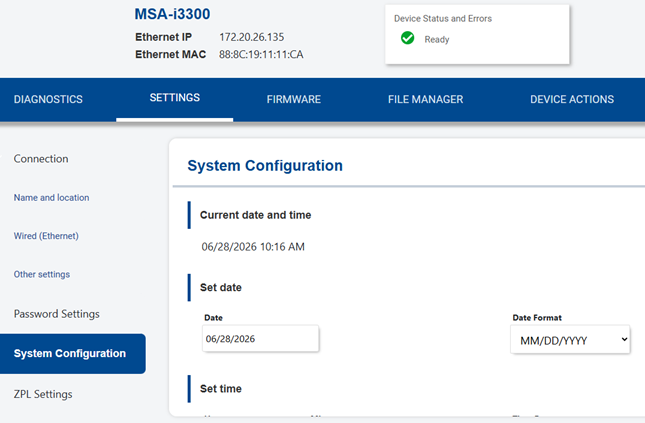
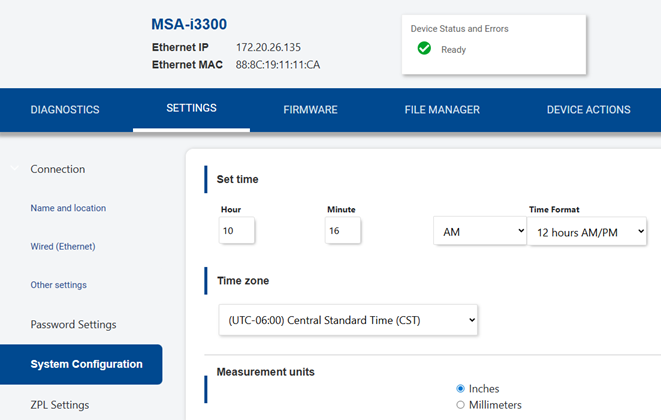
Date and Time
Be sure to set this if your labels include the current date and time. The date and time of the emulator is used rather than that of the attached printer.
ZPL Settings > For ZPL documents
The DPI is automatically set to the DPI of the connected printer. If your ZPL scripts are written for a different DPI, change the setting to match the DPI of your scripts. The Brady Script Emulator for ZPL adjusts for the different DPI so that content is printed on the label in the correct position.
Note that if the two DPI values are not cleanly divisible by whole numbers the adjustment may not be exact. For example, conversion from 200 to 600 DPI has no issues because 200 goes into 600 three times (a whole number). Conversions from 200 to 300 DPI may not be exact because 300 divided by 200 is a fraction, 1.5.