Media information
The i7500 can use Brady specific materials or non-Brady materials. If the labels are specific for the i7500 (i75-series), the printer automatically senses and calibrates the printer in what is called Smart Mode. If the labels are non-Brady or non-i75-series, there are more steps to installing the labels, Manual Mode.
Smart Mode
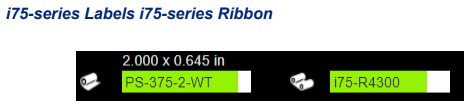
i75-series ribbon and labels causes the printer to be in full Smart Mode where the adjustments are fully automated.
- Part size is automatically detected.
- Print speed and print heat are automatically set.
- The sensor automatically moves to correct location over the notch or gap.
- Sensor setting in the printer menu is automatically set to gap, notch or continuous.
- Printhead pressure is automatically set for the installed material.
- Warning message if the incorrect ribbon is installed for the label material.
- Part Numbers for the installed materials and approximate amount remaining are displayed.
- Label parts are detected in Brady Workstation.
Manual Mode
Non-i75 series manual label and ribbon causes the printer to operate as a thermal transfer printer with traditional setup and changeovers. Ribbon must be determined by the user.
The part number and amount remaining does not display on the LCD screen.
- Determine the correct ink side of the ribbon and load it correctly.
- Visual center-align the ribbon manually.
- Calibrate the printer by feeding out a few wasted labels.
- Set print speed and print heat. Test prints are required to achieve correct print quality.
- Know the label type installed and set the sensor mode to notch, gap, continuous or black mark.
- Move the sensor to the correct place.
- Set the printhead pressure.
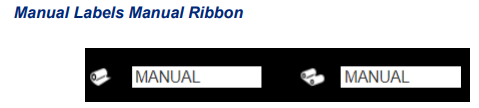
Note: MANUAL-RFID will display when RFID is enabled.
Partial Smart Mode
A combination of i75-series smart labels or ribbon and manual labels or ribbon. Some settings are automated and others need to be set by the user.
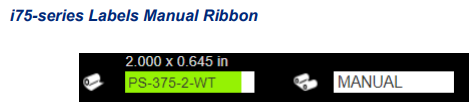
i75-series Labels and Manual Ribbon
- User must determine the ink side of the ribbon and load it correctly.
- User must visually center-align the ribbon.
- No need to feed out wasted blank labels because the part size is automatically detected.
- Print speed and heat are automatically set for the label material, but there may be some adjustments due to the manual ribbon.
- Sensor automatically detects the type of label and moves to the correct location.
- Printhead pressure is automatically set for the installed labels.
- No warning displayed if the incorrect ribbon is loaded for the installed label material.
- Display shows the part number with approximate amounts remaining but no information about the ribbon.
- Brady Workstation detects the label in the software.
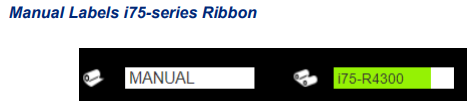
Manual Labels and i75-series ribbon
- Ribbons can only be loaded one way and automatically center-align.
- User feeds out wasted blank labels to "teach" the sensor the label size.
- Set print speed and print heat. Test prints are required to achieve correct print quality.
- Sensor mode must be set to notch, gap, continuous or black mark, depending on the type of labels installed.
- Sensor must be set manually to the correct sensor for the labels: notch or gap.
- The correct ribbon ink formula must be known for the installed labels.
- Display shows the installed ribbon and amount remaining, but no information about the labels.
Related information


