Compatibility
Supported graphic file types are Windows metafile (*.wmf), Bitmap (*.bmp), JPG file (*.jpg), Graphic Interchange Format (*.gif) and Portable Network Graphics (*.png)
Supported font file type are TrueType Font (.ttf). (OpenType Fonts are not compatible).
Import
To import graphics and fonts from a computer to the printer, first transfer the files to a USB drive from a desktop computer. Then follow these steps:
- Connect the USB flash drive to one of the two USB-A ports on the back of the printer.
Note: The printer might not recognize USB drives larger than 4 GBs in storage. They also need to be formatted as FAT32. Which File System Works Best When Using USB Drives with Brady Printers?
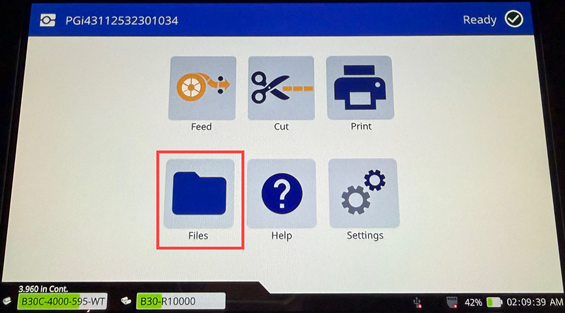
- On the Home screen, tap Files.
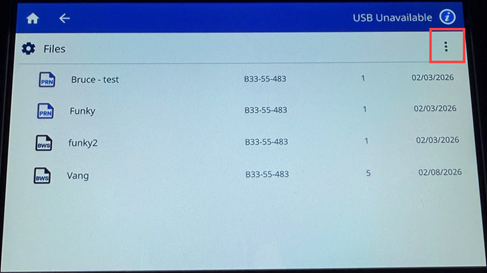
- Tap the three dots on the top right.
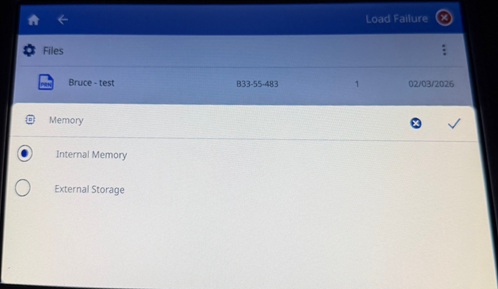
- Find "Memory" and select "External" memory, then select the checkmark on the top right.
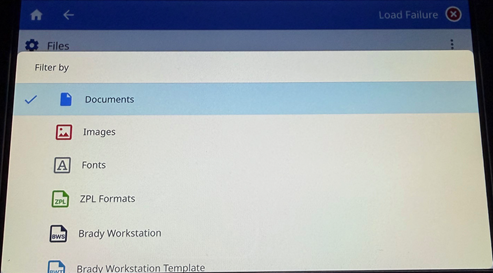
- Select the three dots menu again, then select "Filter". If you are importing image files, select "Images" if you are importing font files, select "Fonts".
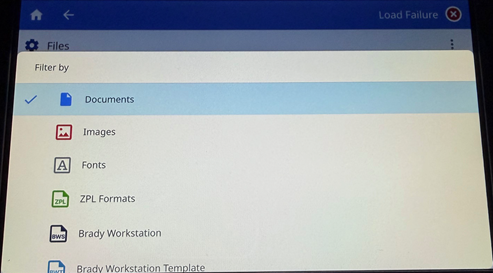
- In the list of files, tap on each file that you want to import.
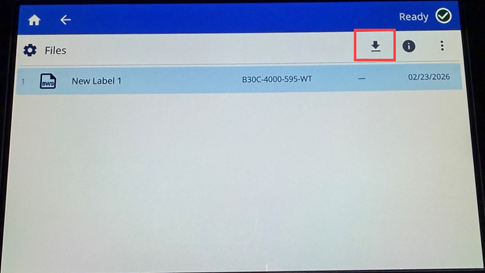
The selected file will highlight blue.
- Tap the import icon. A progress bar will display while the import is taking place. Note: The printer displays a low memory message if it runs out of space.
Delete
To delete graphics and fonts imported to the printer, follow these steps:
- On the Home screen, tap Files.
- If the screen says EXTERNAL MEMORY tap it and change to Internal Memory.
- Tap the three dots menu.
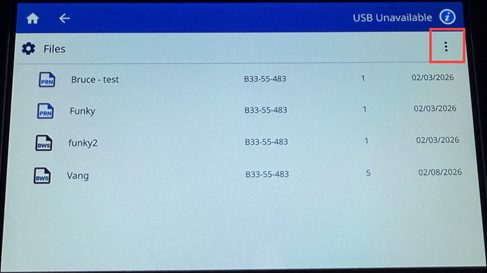
- Tap the Filter menu and select either Images or Fonts.
- In the list of files, tap on each file that you want to delete.
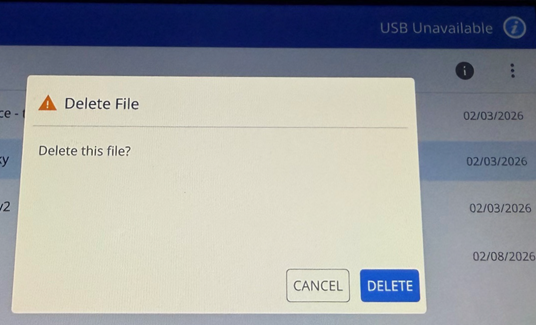
- Tap the three dots menu and then tap Delete. Tap Delete on the pop-up.