The printer displays a keyboard on the screen when you have to type data, such as when you name the printer. Because different languages use different sets of characters, you may need keyboards with different character sets. By default the printer uses the appropriate keyboard for the language setting. For example, if the printer language is set to Simplified Chinese, the printer will automatically display a keyboard with Simplified Chinese characters. If you only want to use the default keyboard, you do not need to change any keyboard settings.
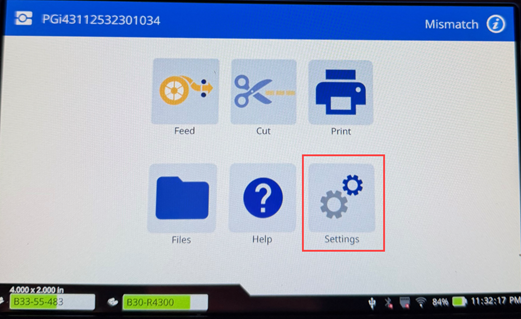
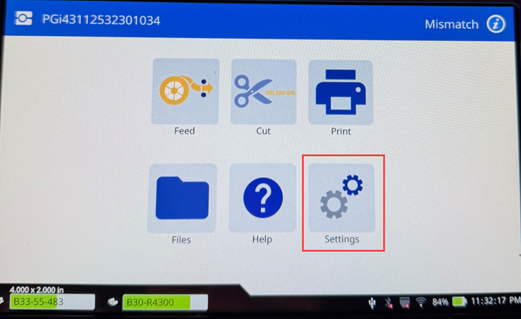
- Tap Settings.
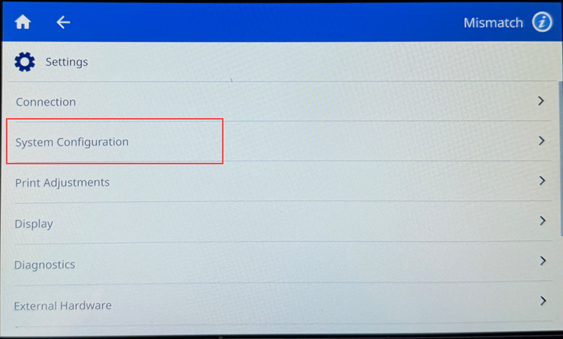
- Tap System Configuration.
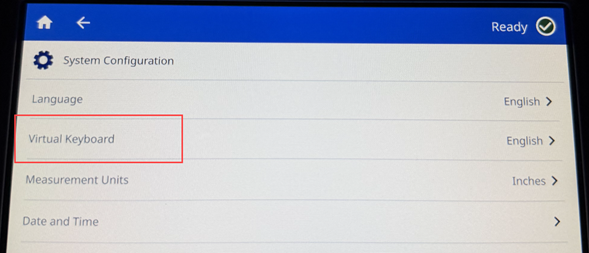
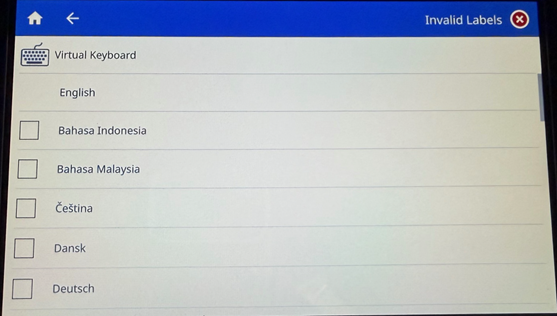
- Tap Virtual Keyboard. A list of supported keyboards is displayed.
- Tap the check box for each keyboard that you want to have available when using the printer. You can select multiple keyboards. The default keyboard (that for the printer language) is shown at the top of the list and cannot be deselected. When you use the keyboard later, the default keyboard is shown. Tap the globe icon to switch to a different enabled keyboard. Each time you tap the globe icon, the display switches to another enabled keyboard.
Connect an external keyboard:
- Plug the keyboard’s USB cable into one of the two USB-A ports on the back of the printer.
- Tap Settings.
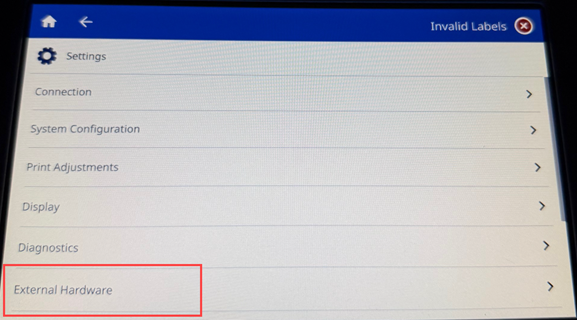
- Tap External Hardware.
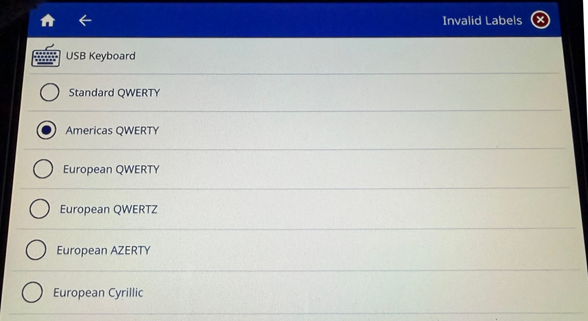
- Tap USB Keyboard.
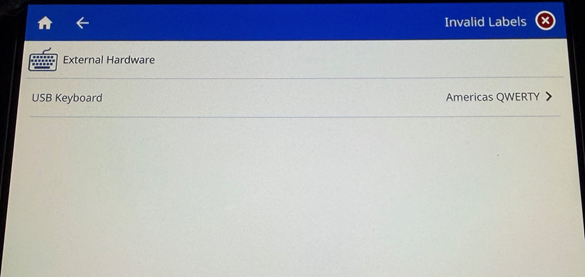
- Tap the USB keyboard option to change it.