Body | Setting Date & Time
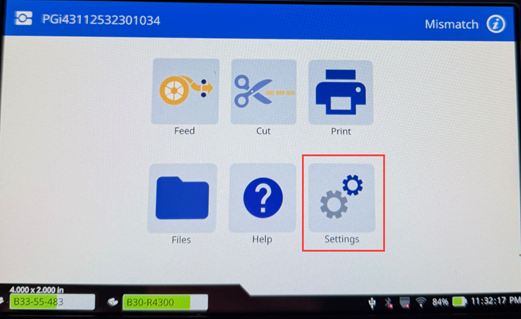
- From the home screen, tap Settings.
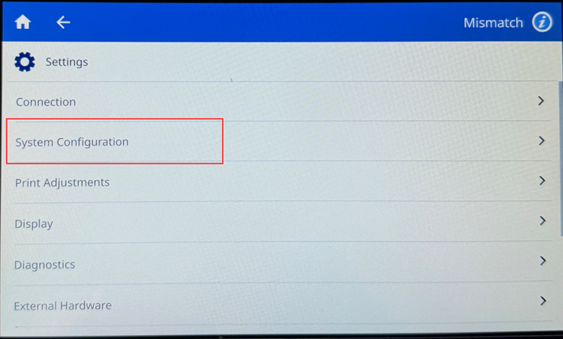
- Tap System Configuration.
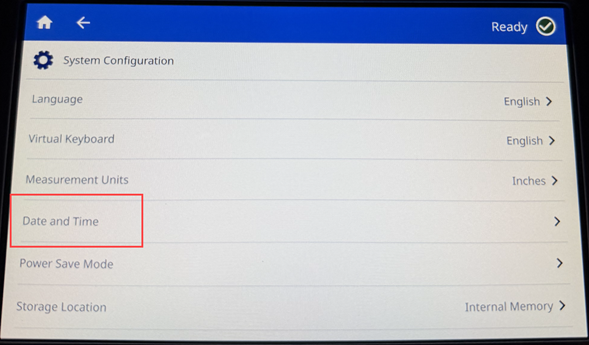
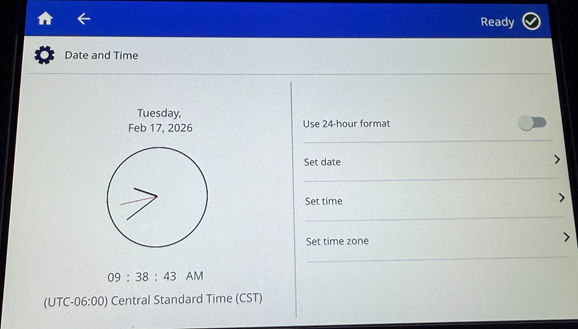
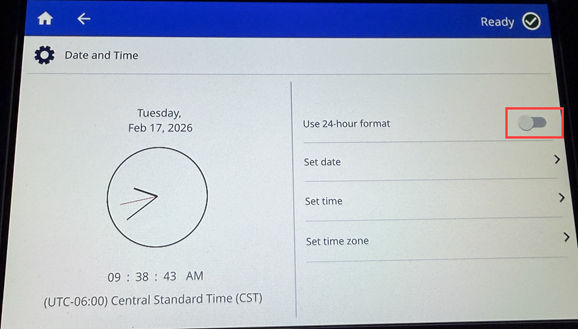
- Tap Date and Time. The left side of the screen displays the current settings.
- To change the settings, tap the controls on the right.
-
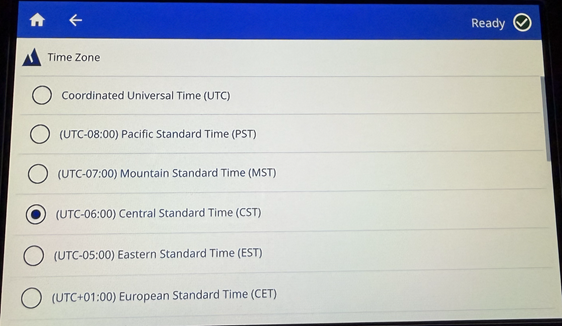
- Set time zone: Tap to display the different time zones available. Tap the time zone desired.
-
- User 24-hour format: Tap the switch to change between 24-hour format and 12-hour format with AM and PM. When the switch is red, the printer uses 12-hour format. When the switch is green, the printer uses 24-hour format.
-
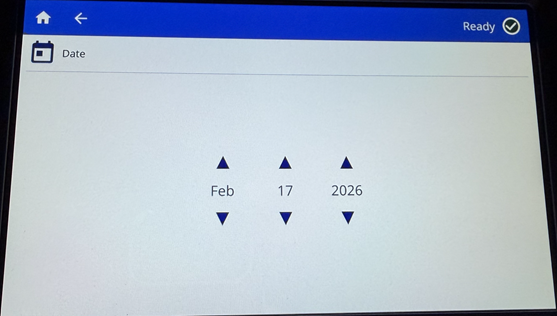
- Set date: Tap to display date controls. To change the date, either tap on an element and select a new value, or tap the arrows above or below an element.
-
- Set time: Tap to display time controls. To change the time, either tap on an element and select a new value, or tap the arrows above or below an element.
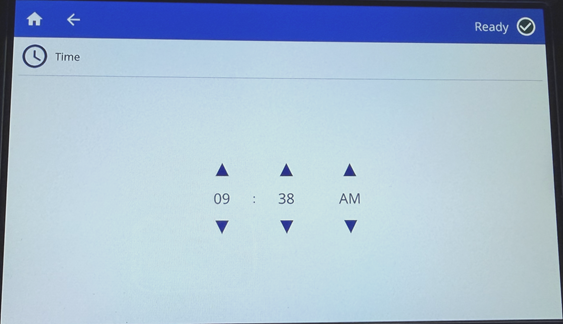
- Tap the back arrow to go back to the previous screen or the home icon.
|
|
|---|

