Article Shortcut Links
- Viewing the Current Label Library Version
- Brady Workstation Update
- USB Flash Drive Update
View the Current i3311 Label Library Version
- Navigate to the home screen of the printer.
- Tap Settings.
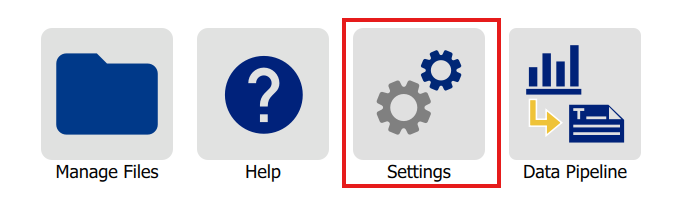
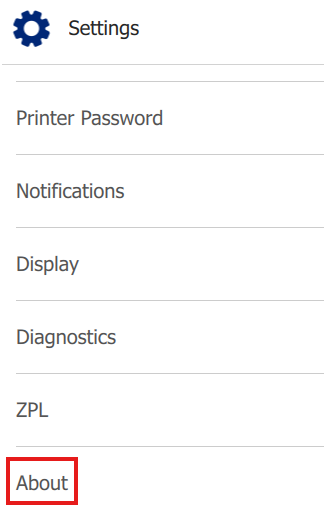
- Tap About.
- The label library version will be listed.
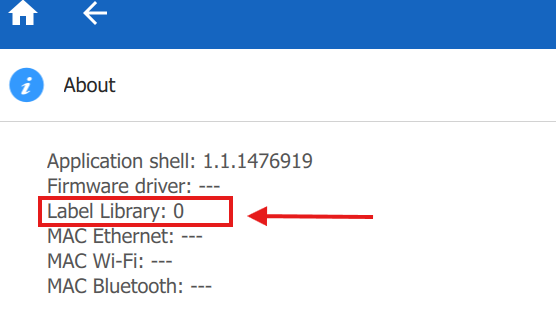
Note: Verify that your label library version matches the current version listed on bradyId.com before updating.
Once you verify your printer needs an update, follow the steps below for updating. There are two methods for updating the printer's label library.
- Using Brady Workstation
- Using a USB Flash Drive
Updating Using Brady Workstation
Before getting started, verify your printer has a connection to the computer by printing a label.
- Open Brady Workstation on your computer that is connected to the printer.
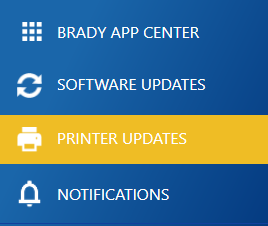
- From the home screen of Brady Workstation, click Printer Updates.
- Find your printer.
- If the printer is connected via USB, it will appear underneath Brady Printers.
- If the printer is connected via Ethernet or Wi-Fi, it will appear underneath Brady Managed Network Printers.
- Click on Update or More Actions underneath the Printer Updates column.
- You will be presented with three options for updating your printer's label library. This article will walk through the Update Now option.
-
- Update Now to upgrade the Printer Label Library directly.
- Download to download the file to update via USB.
- Browse to locate a file on a computer not connected to the internet.
- The update will take a few seconds. Once the update is finished, restart the printer.
Updating Using USB Flash Drive
Requirements
- USB Flash Drive
- 4GB or smaller. If you don't have a USB that is 4GB or smaller, the printer might detect larger USB drives (8GB - 32GB).
- Formatted as FAT32.
- Insert the USB drive into the computer.
- Navigate to www.bradyid.com
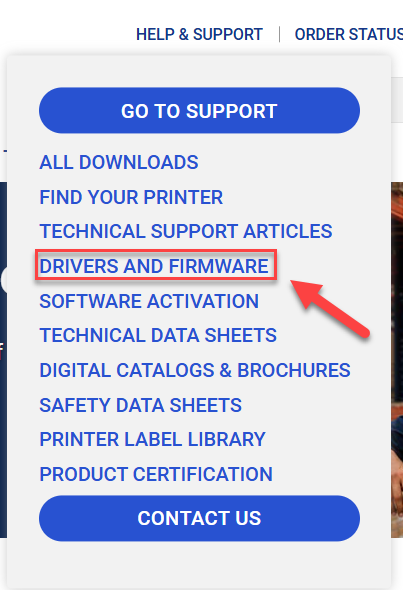
- Hover over Help & Support.

- Select Drivers And Firmware.
- Type i3311 into the search bar in the middle of the page and press enter.

- Select the label library link for the i3311.
- Click Begin Download at the bottom of the page.
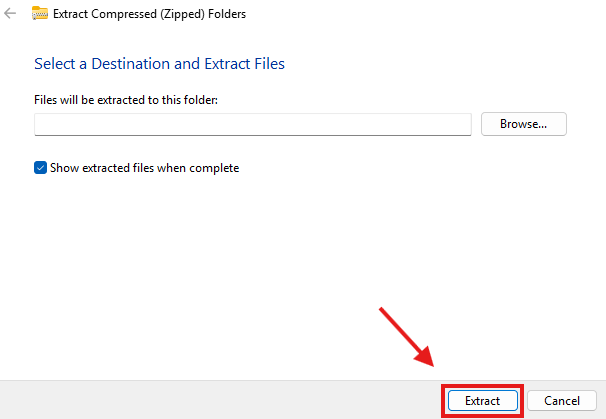
- Once the download completes, open the i3311-LabelLibraryFile folder and select Extract all.
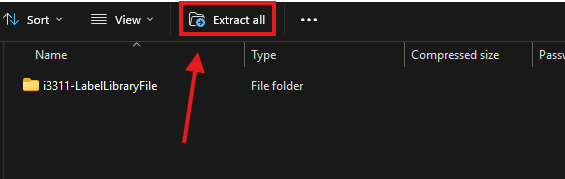
- Click Extract.
- Copy and paste the i3311YB file to the root of your USB drive.
Note: The file should not be inside of any folders within the USB drive.
- Insert the USB drive into one of the USB ports on the back of the printer.
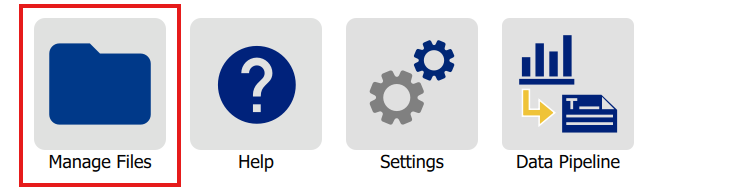
- On the printer's LCD screen, tap Manage Files.
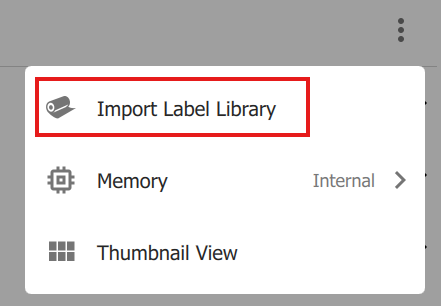
- Tap the three dots.

- Tap Import Label Library.
- Once the printer detects the update file, the update should take a few seconds.
- Restart the printer once the update finishes.