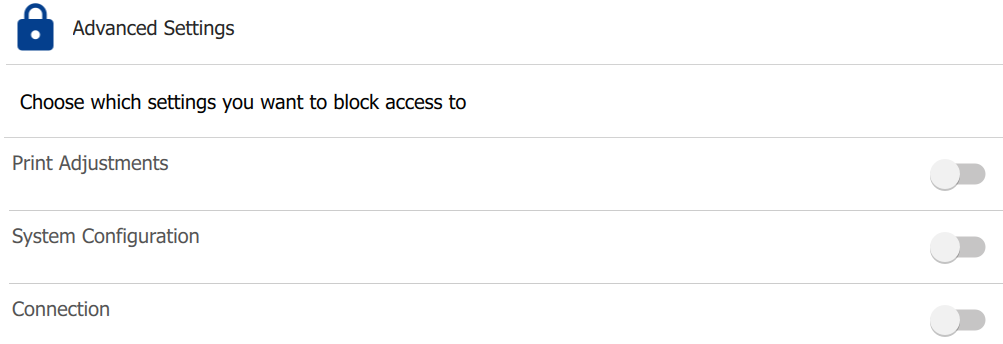
The printer password allows the user to block access to changing settings on the printer. If no options are selected under the password Advanced Settings, the Settings menu will be blocked out.
Settings available to block access to:
- Connection
- System Configuration
- Print Adjustments
- Display
- Diagnostics
- External Hardware
- About
- Notifications
- ZPL
Article Shortcut Links
Set Password
- Navigate to the home screen of the printer.
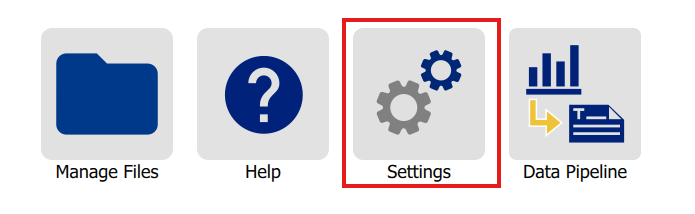
- Tap Settings.
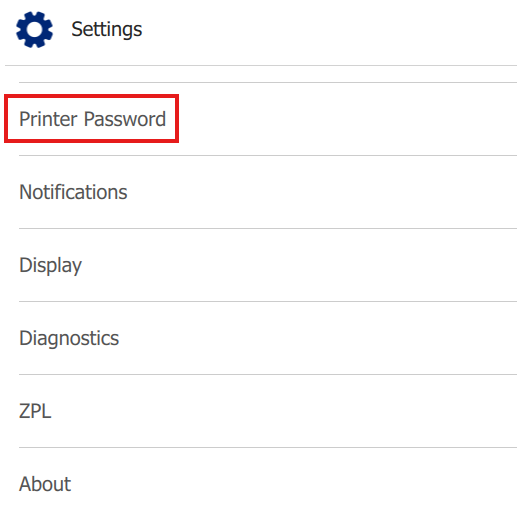
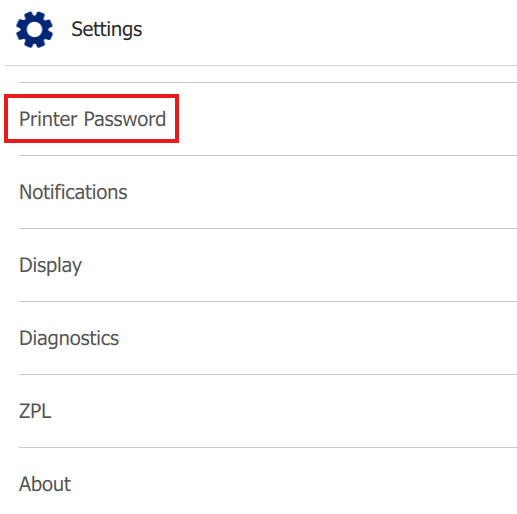
- Tap Printer Password.
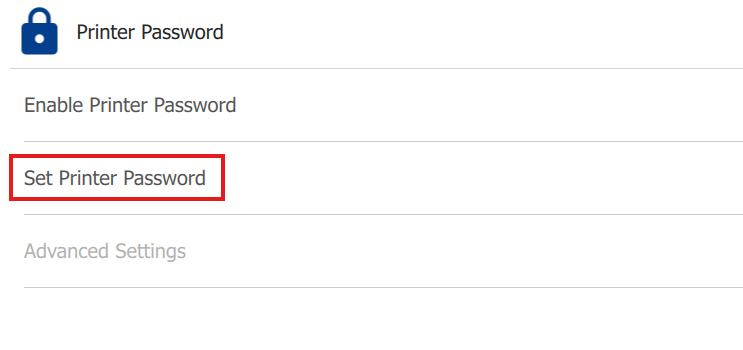
- Enable the printer password.

- Tap Set Printer Password.
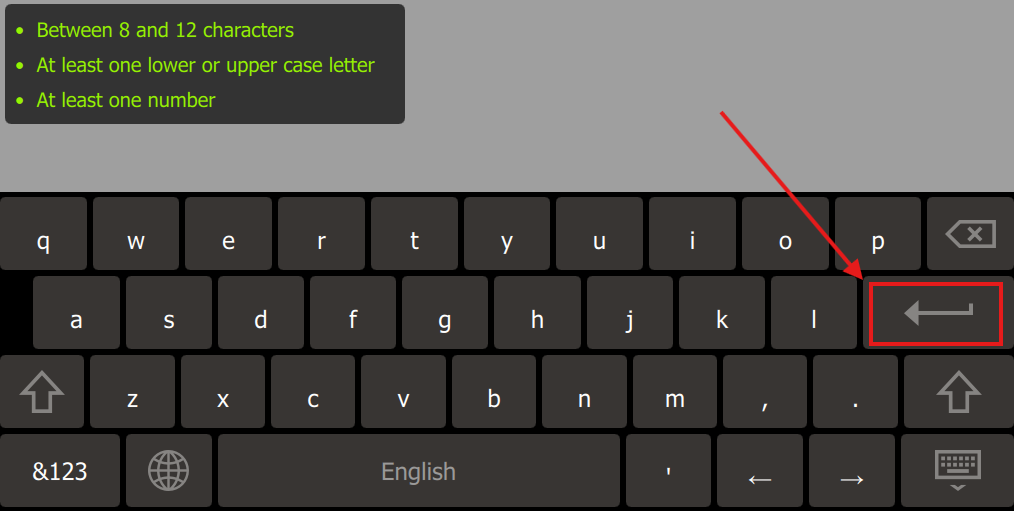
- Type in your password.
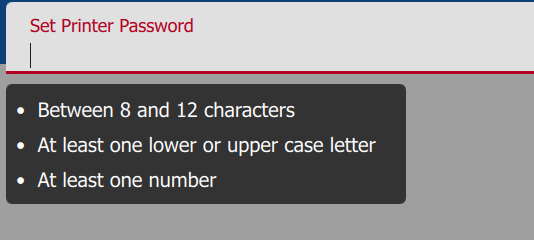
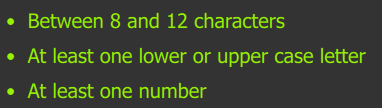
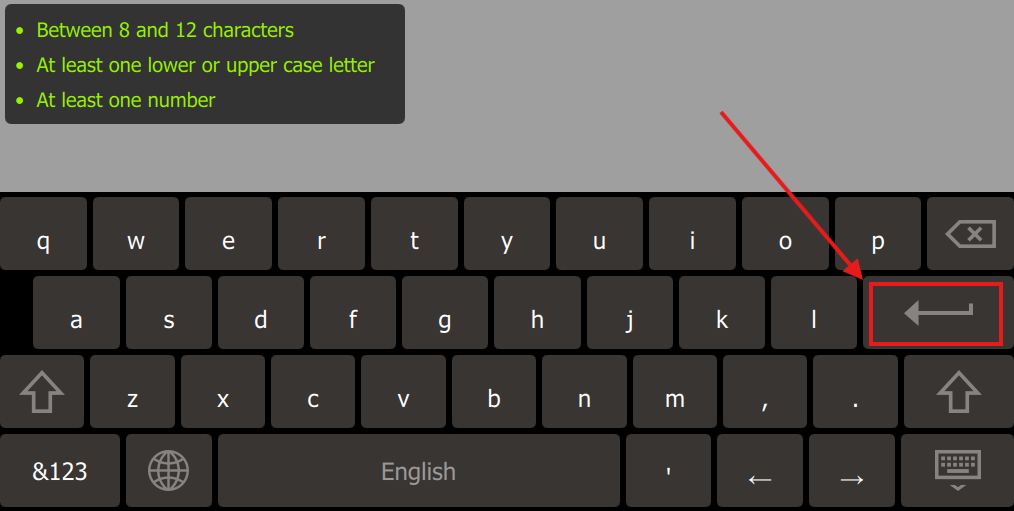
Note: The text of the requirement field will highlight green once the requirement has been met.
- Press the enter key on the virtual keyboard.
- Re-enter the password and tap the enter key.

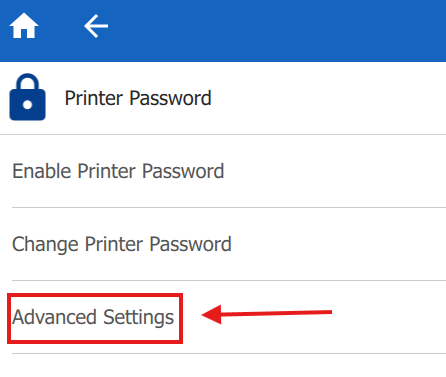
- Tap Advanced Settings.
- Tap the switch for each setting you want a password requirement to change.
Change an Existing Password
- Tap Settings.
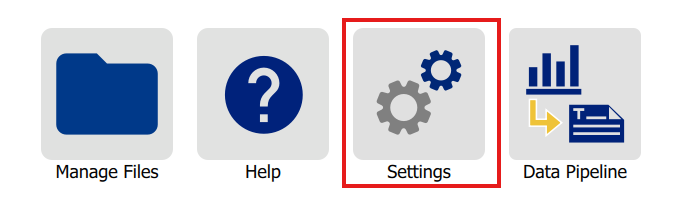
- Tap Printer Password.
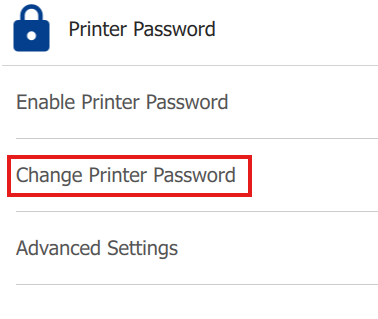
- Tap change printer password.
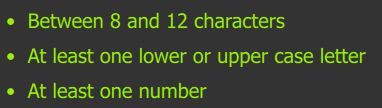
- Enter a new password.
- The password must be between 8 and 12 characters.
- At least one lower or upper case letter.
- At least one number.
- Once all the criteria is met, the text will highlight green.
- Enter your password a second time to confirm it.
- Tap the enter key on the virtual keyboard.
Reset a Forgotten Password
- Tap Settings.
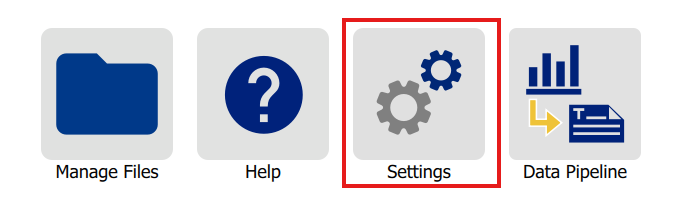
- If your printer's settings menu is completely locked, you will be prompted to enter your password right away.
- Tap Forgot Password.
- If only a handful of the settings are locked, select one of the locked settings menus to receive the prompt to enter a password.
- Tap Forgot Password.
- Call Technical Support: Global Brady Technical Support Contact Information
- Tap Printer Key.
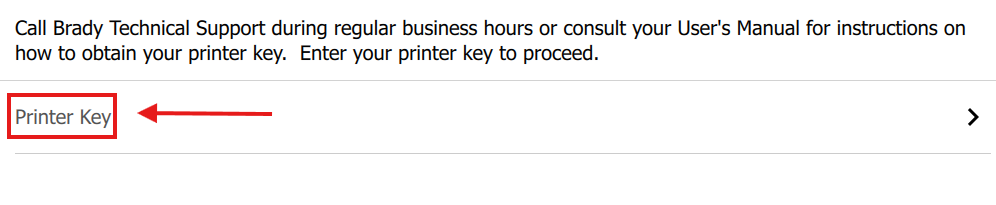
- Enter in the Printer Key provided from Technical Support and press the Enter key on the virtual keyboard.
- Tap Set Printer Password to change the password.
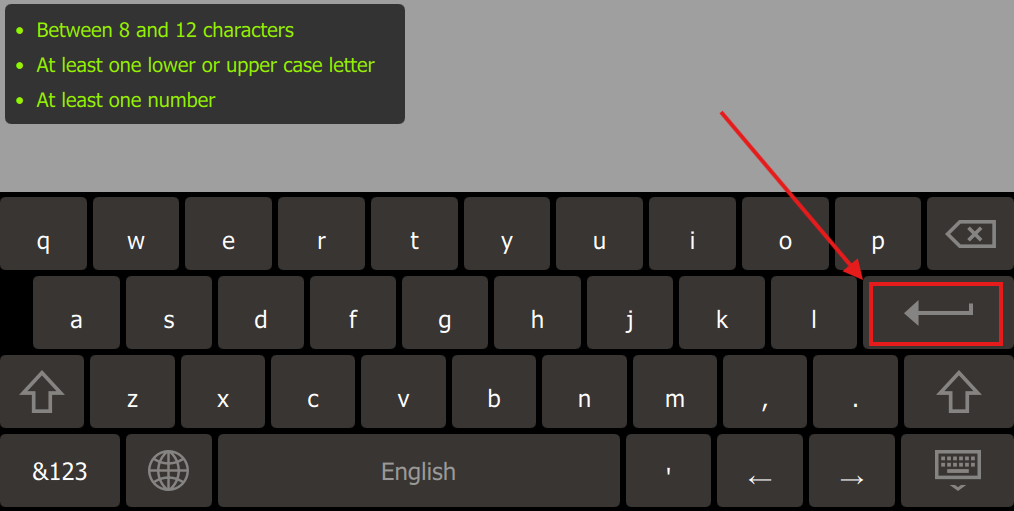
- Enter a new password and press Enter.
- The password must be between 8 and 12 characters.
- At least one lower or upper case letter.
- At least one number.
- Once all the criteria is met for the password, the text will highlight green.
- Enter the password a second time to confirm it and press Enter.
Note: To disable the printer password, go back into the Printer Password menu, and press Enable Printer Password. The button will be gray if the password is disabled.