Deleting files Stored on the Printer
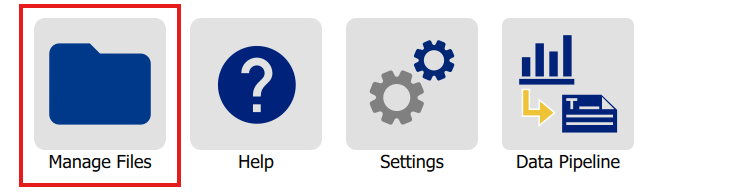
- From the home screen, tap Manage Files.
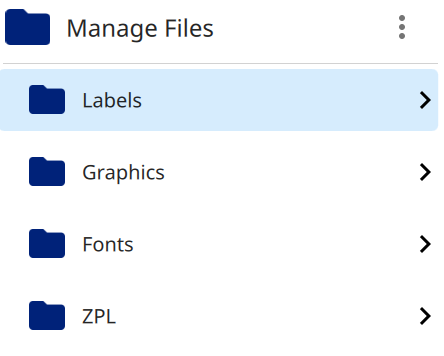
- Locate the file(s) in each folder that you want to delete.
Note: You can only delete files from one folder at a time.
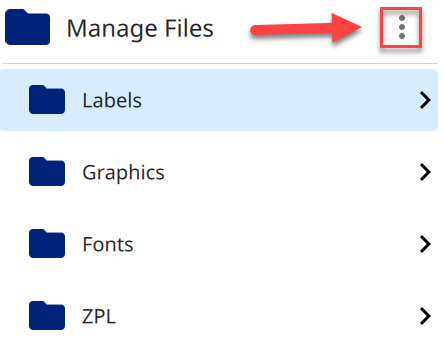
- Once all files are selected, tap the three dots menu icon on the top right of the screen.
- Scroll down the menu and tap Delete.
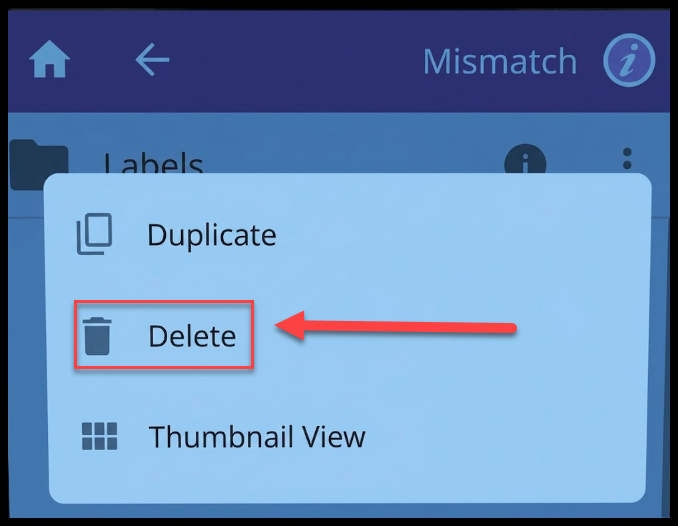
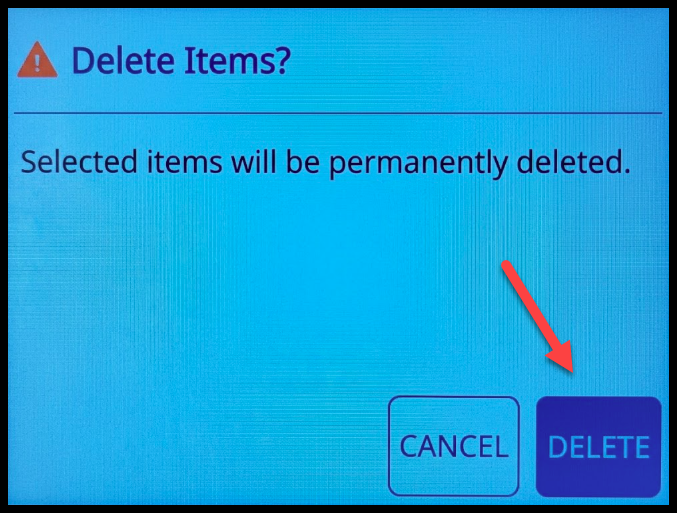
- Tap Delete to confirm the deletion of the file.
Related Information