Note: If you are using Brady Workstation software, the settings of the software can overwrite the settings on the printer. If the use Printer Settings check box is unchecked in Brady Workstation, the cut options in Brady Workstation override what is set on the printer. Brady Workstation - How to Set Label Cutting Options. Cutting options set in ZPL script override the setting on the printer also.
If you are using a 3rd party label creation software, the printer driver settings on the computer can also overwrite the printer settings. To access the i3311 driver from Windows 11, navigate to the "Printers & Scanners" Windows application > Printer Properties > General > Preferences.
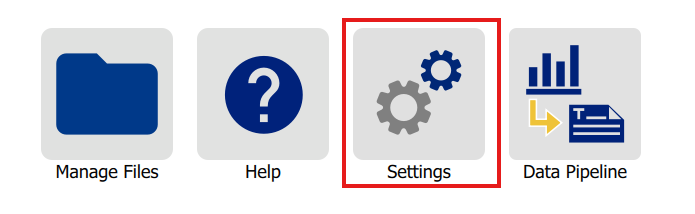
- Navigate to the home screen of the printer.
- Tap Settings.
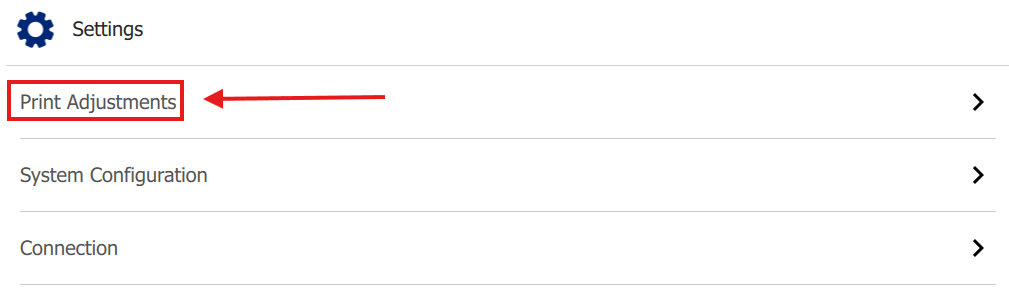
- Tap Print Adjustments.
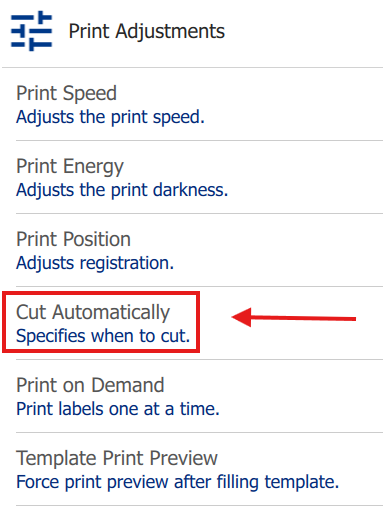
- Tap Cut Automatically.
- Select the Cut setting: End of Job, End of Label, Cut After Defined Number of Label Rows or Never.
Note: A blue checkmark will indicate which settings are selected.
- For cutting after a defined number of label rows, you can set the cutting interval from 2-999 labels.