ZPL Scripts
The printer supports ZPL scripting with some basic commands being able to be changed directly on the printer. Programming is beyond the scope of this manual. A ZPL specific manual that includes a list of commands that the printer supports can be found at www.bradyid/support/printer/i3311
To Change ZPL settings
- Navigate to the home screen of the printer.
- Tap Settings.
- Tap ZPL.
- DPI: Make sure this is set to the dpi of your ZPL scripts (as opposed to the dpi of the printer).
- ZPL Offset: (Only visible when using Brady smart labels.) If scripts are not printing in the desired position on the label, adjust the offset. Tap the arrows to move the print in the label image left, right, up, or down. The measurements shown in the upper right indicate how much the beginning print position will shift relative to the original placement; it does not represent the distance from the left edge of the label. To change the units, tap the more menu button then tap ZPL Measurement Units, and then tap either Dots, Inches, or Millimeters. To reset to the factory setting (0, 0), tap ( ). The ZPL Offset is included in the bookmark for the installed labels and ribbon. See Bookmarks on page 41.
- Label Height: If you have continuous labels, the printer uses this height for the length of each label. The LL command in a script overrides this setting.
- Control Prefix: (Use for scripts that do not use the default ~ character.) Specify the prefix character that indicates a control command. Control commands tell the printer to perform an immediate action such as feeding a label.
- Format Prefix: (Use for scripts that do not use the default ^ character.) Specify the prefix character that indicates a format command. Format commands provide the layout and formatting information to produce the label. Delimiter Char: (Use for scripts that do not use the default comma character.) Specify the character that separates parameters.
Continuous Labels
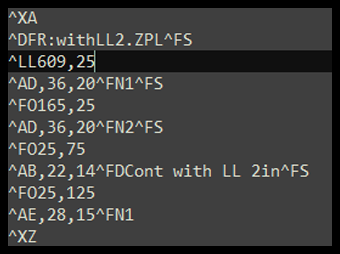
When Brady continuous labels are installed in the printer, the ZPL script must include the [^LL] command for optimal printing. Sample script shown below.
Graphics & Fonts
If your script files use graphics or text that are not already on the printer, you will need to import them before running the script. Minimum Font Sizes: The printer supports a minimum 5 pt font size in scripts. IMPORTANT! It is recommended that ZPL scripts be written in the dpi supported by your printer.
Related Information