These instructions download a generic driver to the computer. This can be used to test print ZPL or BPL scripts.
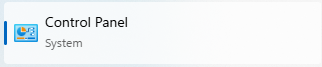
- Open Control Panel on the computer.
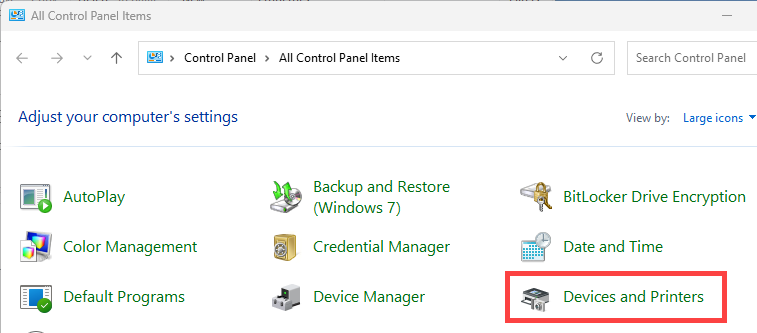
- Click Devices and Printers.
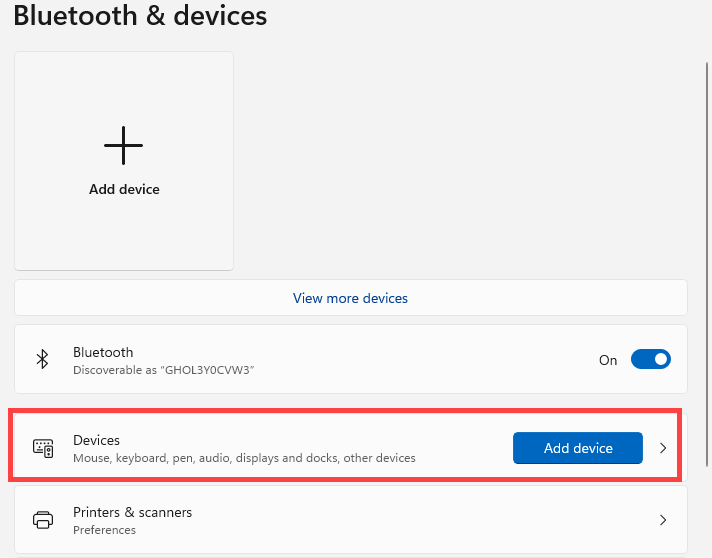
- Click Devices.
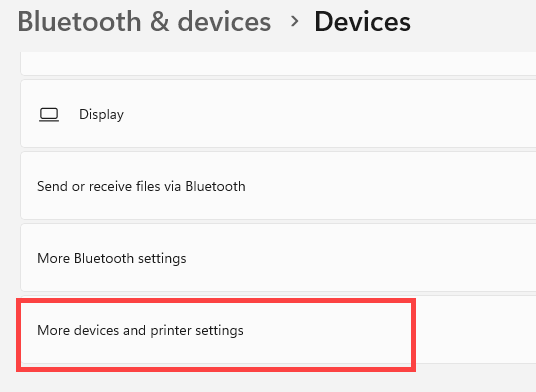
- Scroll to the bottom and click More devices and printer settings.
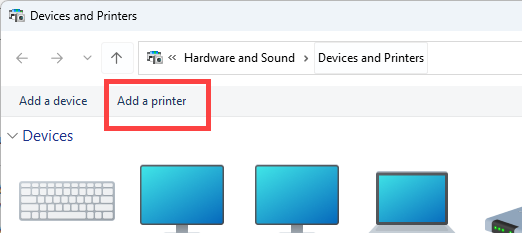
- Click Add a printer.
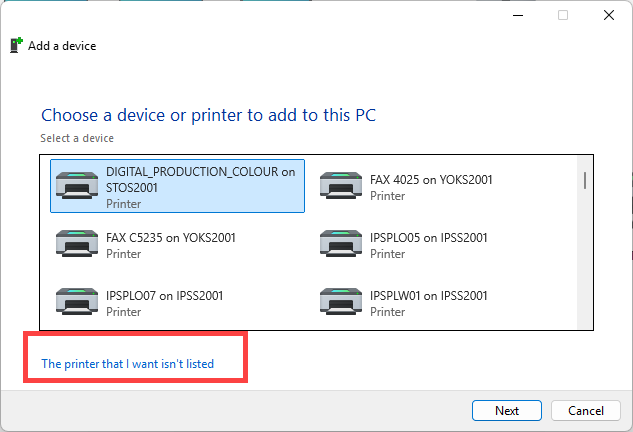
- Click The printer that I want isn't listed.
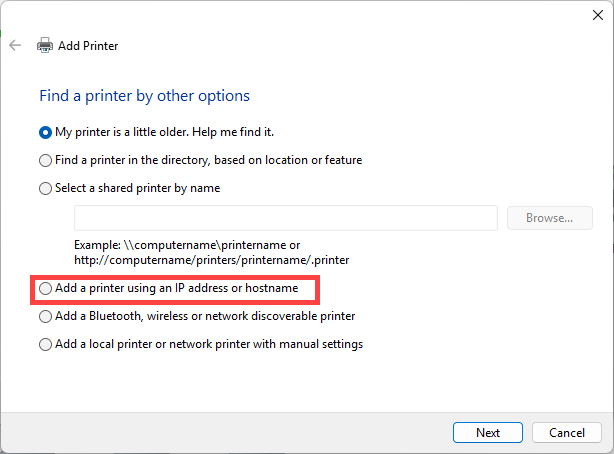
- Click the radio button for Add a printer using an IP address or hostname.
- Click Next.
- Select the Device type and enter in the Hostname or IP address.
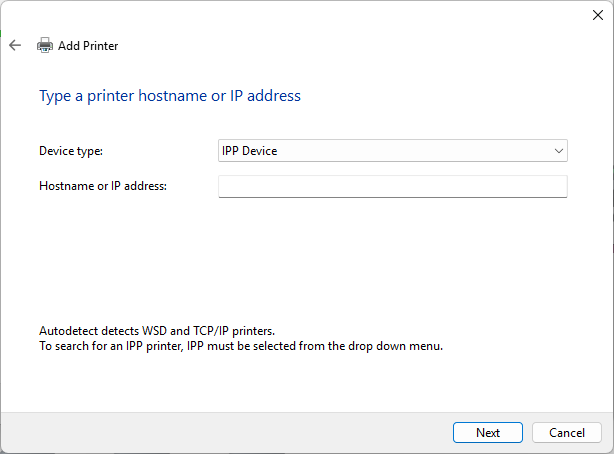
- Click Next.
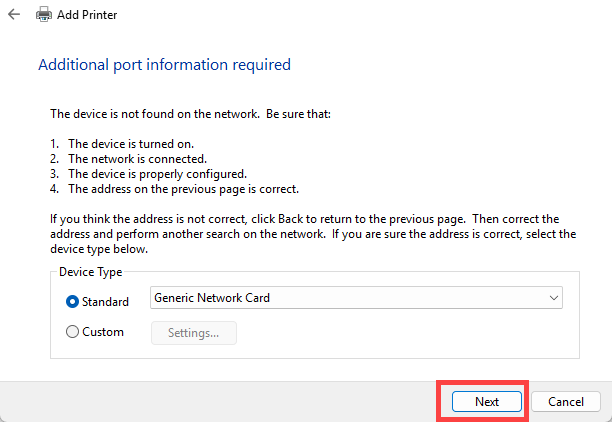
- If the successful page appears, proceed to the next step.
- Click Next.
-
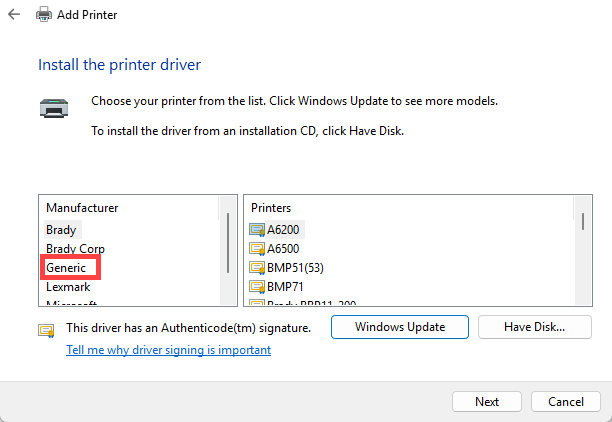
- Select Generic for the Manufacturer.
-
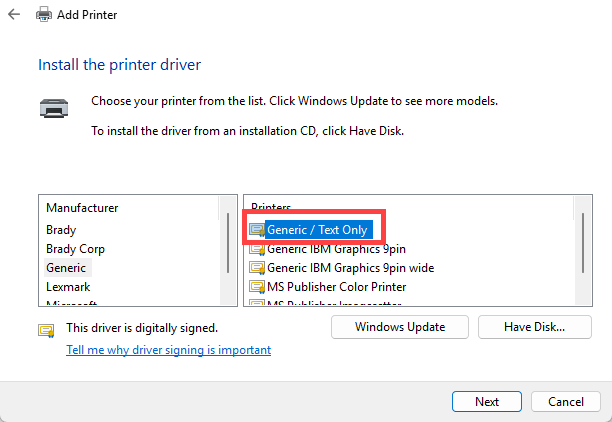
- Click Generic / Text Only and click Next.
-
- Adjust the Printer name, if applicable. Click Next.
- Click Finish.
- Paste the script into Notepad or use your preferred software/text editor and then print it using the newly added generic driver.


