.prn and .bws files can be stored on the printer.
There are settings to store files on the printer in the Driver. Refer to the Driver section in this article.
- Create the file in Brady Workstation: Brady Workstation - How to Create a Basic Label File in Custom Designer.
- Click the Print icon.
- Select the Print Mode: J7300 - Print Mode.
Important: The Print Mode is saved with the file when it is stored on the printer. The Print Mode cannot be changed on the printer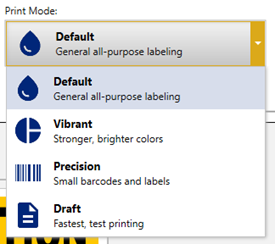
- Click the dropdown next to print and select Store on Printer.
- Store displays where Print was. Click Store to store the file on the printer.
The driver is required for third party software.
- Download the driver: J7300 - Download the Driver & Print Utility.
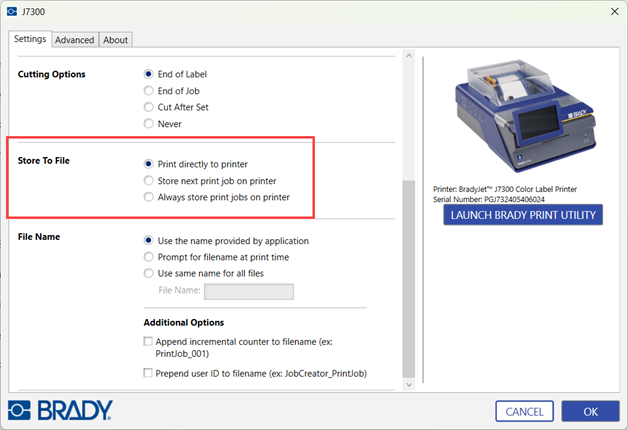
- Open the Settings tab and scroll down to Store to File.
- Select one of the options, if applicable:
-
- Print directly to printer (Default)
- Store next print job on printer
- After the next print job is sent, this will revert back to the Print directly to printer option.
- Always store print jobs on printer
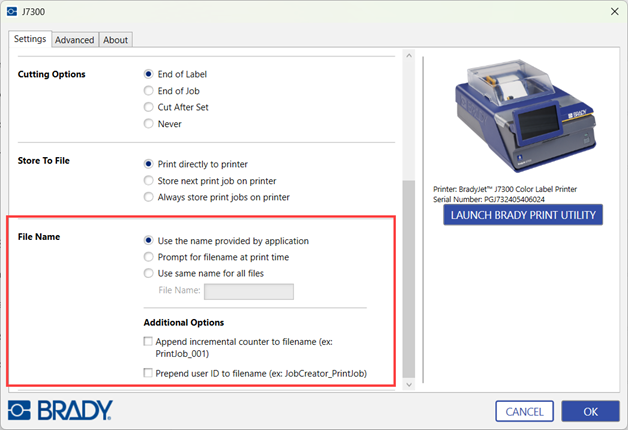
- Select File Name options, if applicable.
-
- Use the name provided by application (Default)
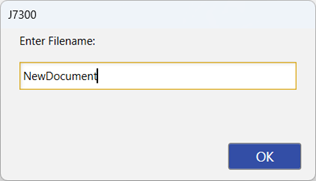
- Prompt for filename at print time
- If the radio button is selected for Prompt for filename at print time, a pop-up appears with a textbox to enter in the filename.
- Use same name for all files
- Additional Options
- Append incremental counter to filename (ex: printjob_001)
- Prepend user ID to filename (ex: JobCreator_PrintJob)
 .
.
- Click OK to save the changes.
Related information