i5100 Firmware Upgrade Instructions
For information on the latest firmware version, view the document in the Files section.
- Download the firmware from BradyID.com.
- Click Begin Download.
- Right-click the folder and click Extract All.
- On your USB Drive or SD card, create a folder in the root named misc.
- Copy the brady.cfw file into the misc folder on your USB or SD card.
- Insert the USB Drive or SD card into the back of the printer.
- On the printer screen tap the gear icon.
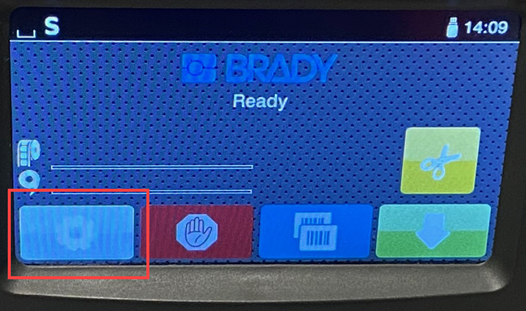
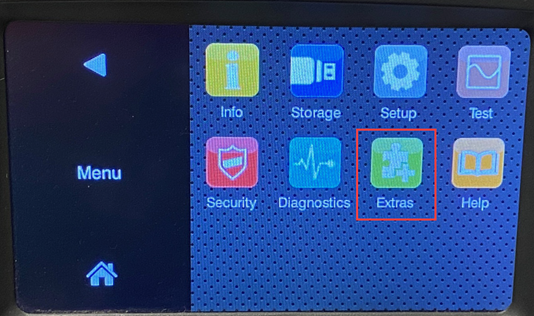
- Tap Extras.
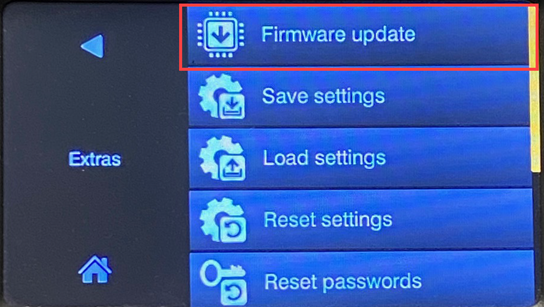
- Tap Firmware update.
 .
.
- Select the file and click on green checkmark.
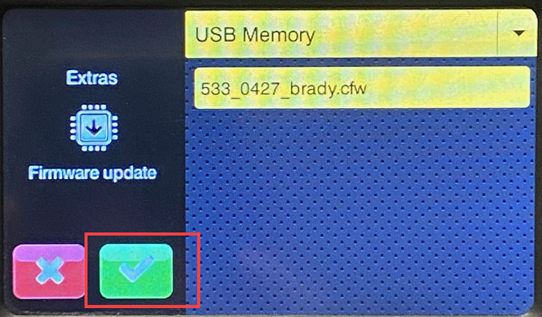
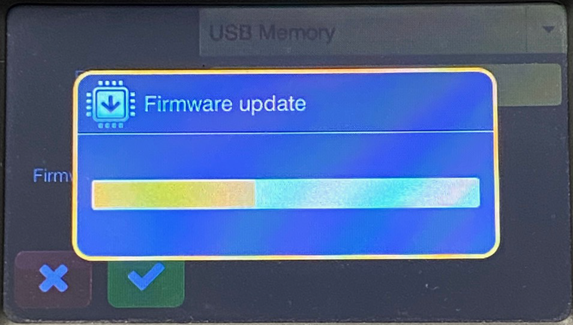
- The firmware will then be upgraded. Printer will restart after upgrade is complete.
IMPORTANT: Due to changes from 5.08 to 5.20 the printer will need to be re-calibrated. Future firmware updates will not need this calibration done. If you are already on 5.14 you should not need to do the calibration. To Calibrate the printer: i5100 - Calibrate label sensor.
The printer will continue to try and update the firmware if you do not remove the USB once the upgrade is complete.
Related information


