Moving Your Lockout Writer Installation to a New Computer
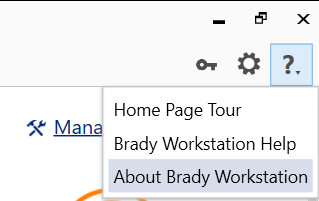
- Locate your license information. In Brady Workstation you can do this by going to the question mark icon and clicking "About Brady Workstation": How to Find Your Brady Software License.
- (Optional) Backup your Lockout Writer procedures to network or portable storage. By default, these files are saved locally to your disk drive in: C:\Users\Public\Documents\Brady Corp\Brady Workstation and will have the .LOW extension. B.) Also backup all files and the Files folder from the C:\ProgramData\Brady Corp\Brady Workstation\AddinsData\LockoutTagout folder on the old PC.
- Download the installation files from this link on the Workstation site. We recommend downloading the latest version, which will include all improvements and bug fixes.
- Install Brady Workstation, see this article for assistance install the Brady Workstation shell and apps: Brady Workstation - How to Download and Install the Software and Apps from the Web.
- Perform a license transfer: Brady Workstation - Transferring App or Suite Licenses.
Note: If you no longer have access to the original PC, you can recover your license using the Software self-service portal: Activate Your Brady Software License On a New PC After a Hard Drive Wipe or PC Crash.
- (Optional) Copy your Lockout Writer procedures and templates to the new PC:
- Copy the procedure and template files into the same location they resided on the old PC.
- Copy all files and the File folder from the old PC onto the new PC, same location: C:\ProgramData\Brady Corp\Brady Workstation\AddinsData\LockoutTagout being sure to overwrite existing data.


