NOTE: The A5500 printer driver (for Windows) should not be used for this printer model if printing from Brady Workstation - Brady Workstation - Direct Print Compatibility The Windows print driver (and instructions below) should only be used if printing from a 3rd Party (non-Brady) app or Brady's Data Automation (which requires a Windows print driver). If you installed the print driver and having problems with Brady Workstation, uninstall the Windows print driver. Windows Printer Drivers - Full Driver Removal instructions.
For details regarding the driver updates, please see the attached document.
- Download the Driver from BradyID.
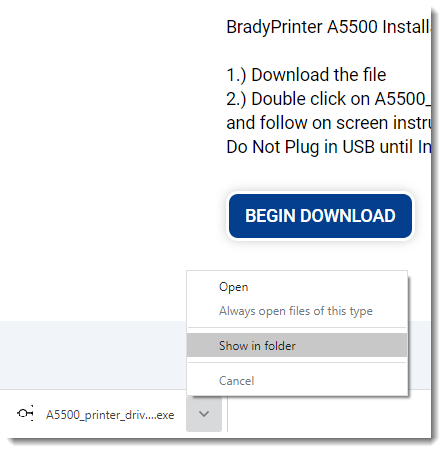
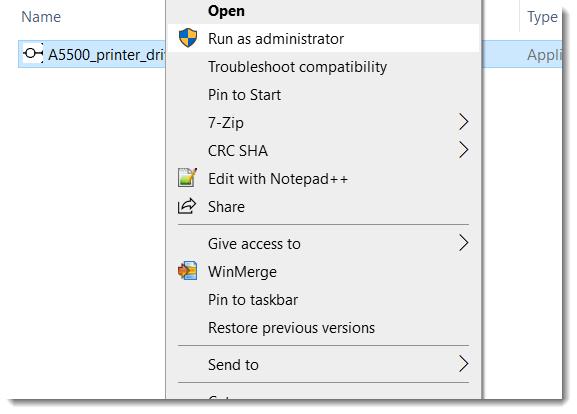
- Run the driver .exe as administrator.
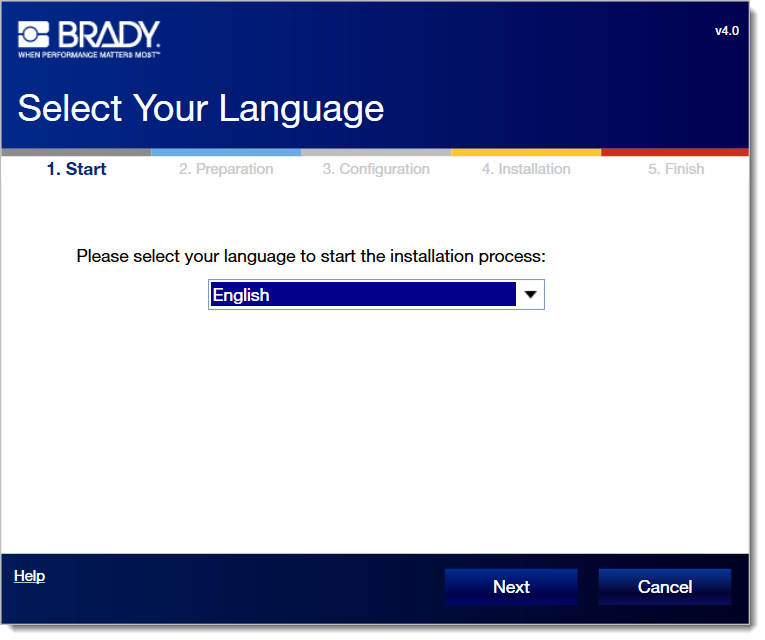
- Select a language and hit Next.
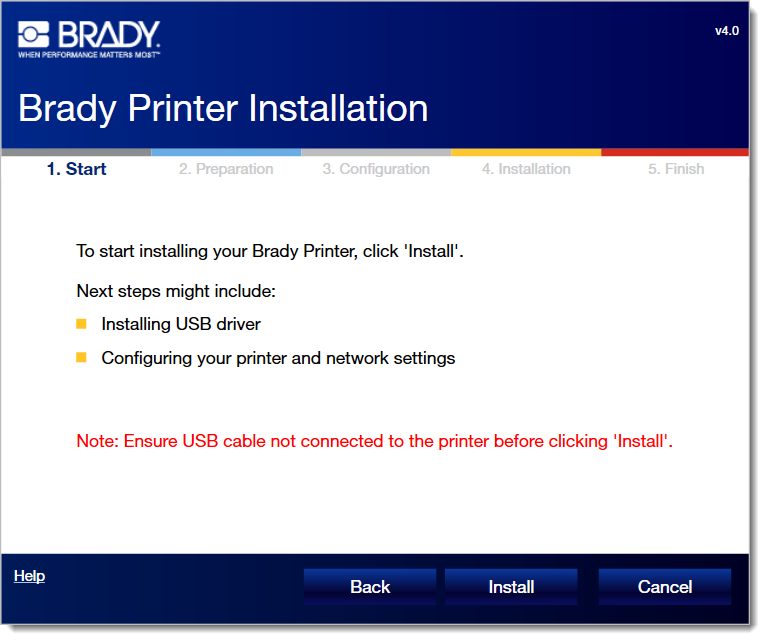
- Click Install.
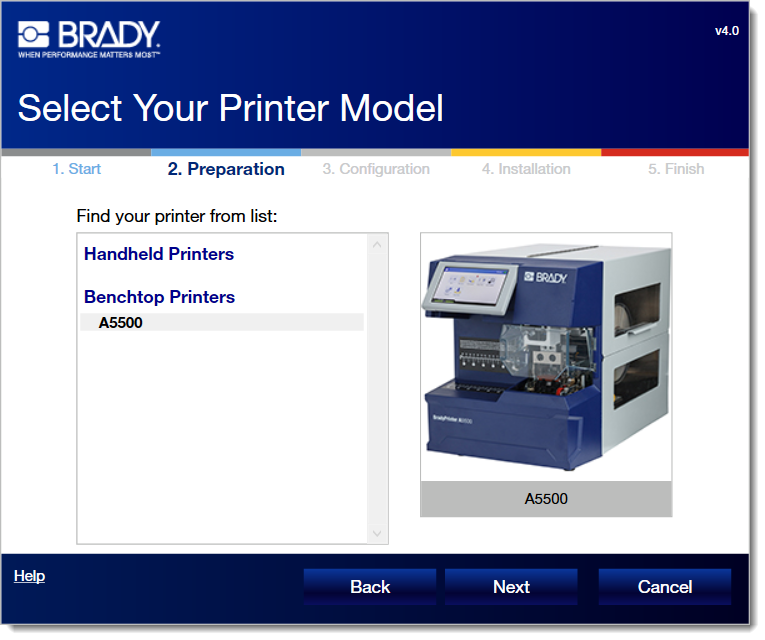
- Select the A5500 and click Next.
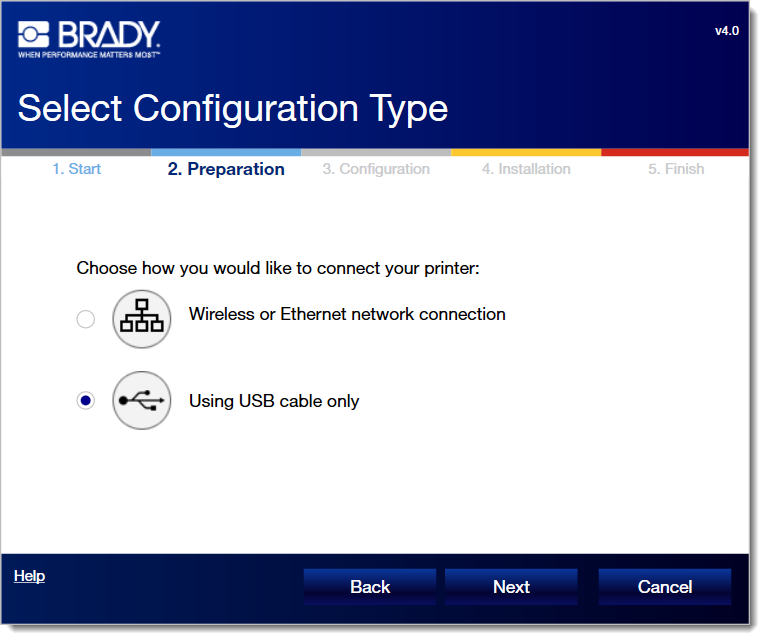
- Select a connectivity method and hit Next.
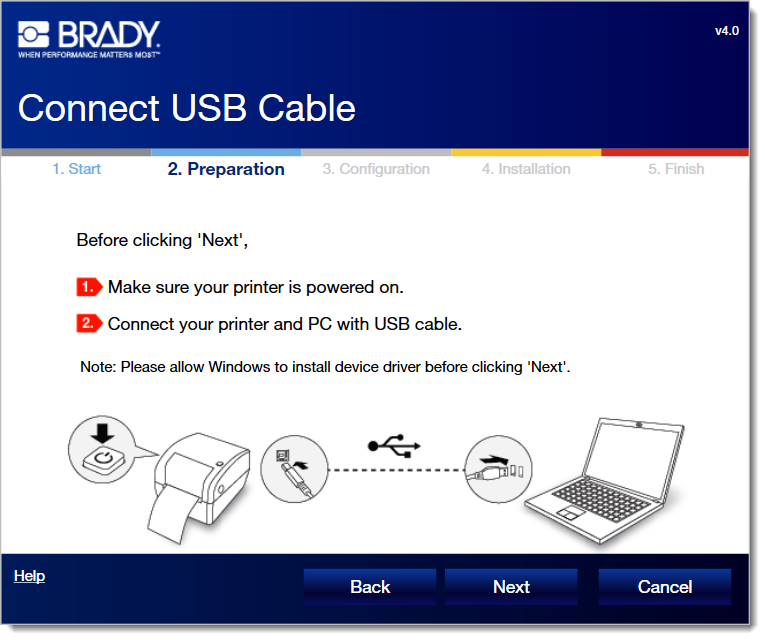
- Power on and connect the printer via USB (if the USB method was previously selected).
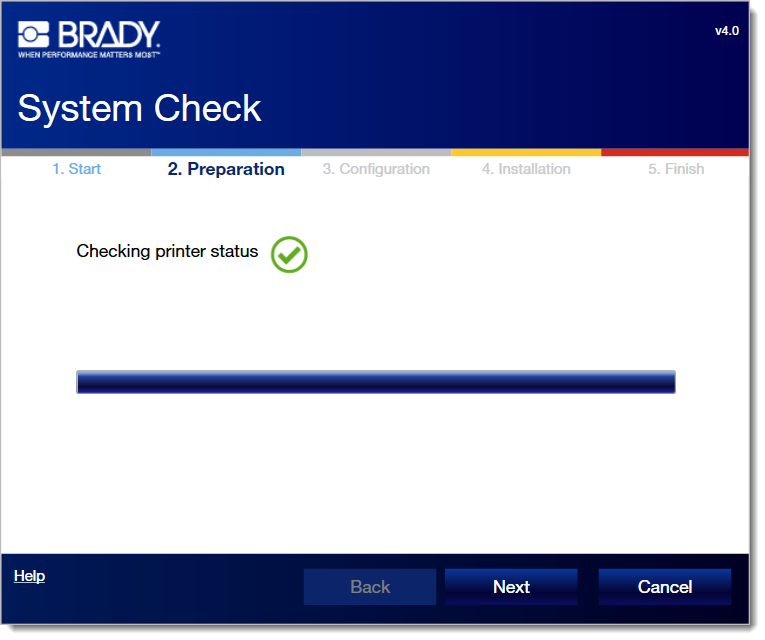
- Click next when printing status check completes.
Note: If you connected the USB cable before step 7, you get a "checking printer status failed" error. Reference this article to resolve - Brady Printer Drivers - Checking Printer Status Failed
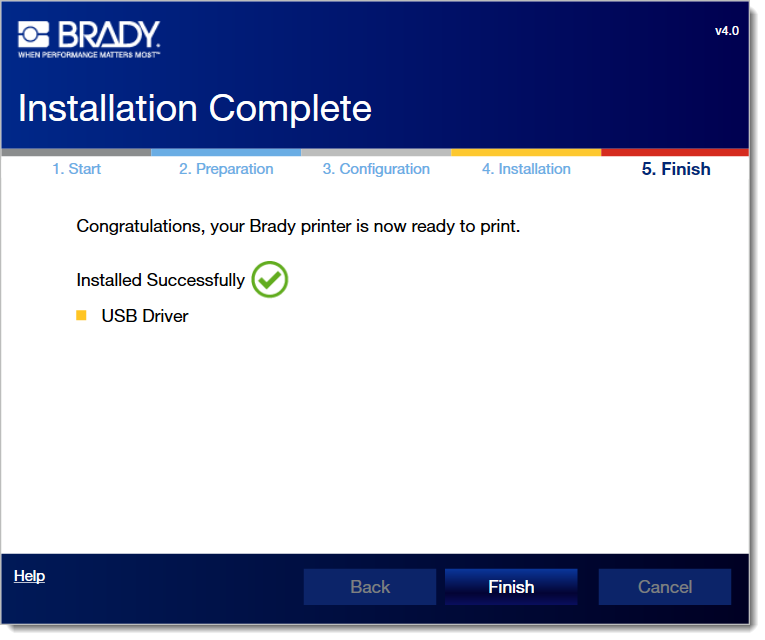
- Click Finnish.