This document demonstrates how to prepare data in CSV & text files so that the data within the file is imported properly into Brady Workstation label and template files. For help formatting an excel file for Brady Workstation, see the following article: Brady Workstation - Format Excel files to Import into the Software
Note: If you are converting an excel file to a CVS file, it is best to save the file as a csv file, rather than changing the file extension from .xlsx to .csv.
Importing a .CSV, TAB, Text File into Brady Workstation Apps
CSV files or "Comma Separated Values" - are text files that use commas to separate the columns / fields. They can use the file extension *.txt or *.csv. The formatting for both CSV & text files will be exactly the same. The data is separated by commas. See example below.
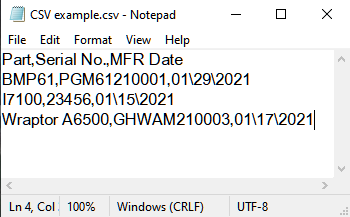
The formatting for both CSV & text files will be exactly the same. The data is separated by commas, This functionality is provided via the Advanced Import plugin, Data Automation application, or Data Pipeline application. As of Shell version 4.11 Advanced Import is provided by default with the full version of Custom Designer, the Print Partner app or Text Labels. .CSV import is not available using the Excel Import plugin from Custom Designer Lite.
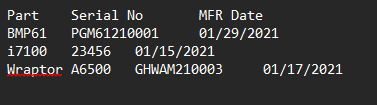
TAB files are also text files that have their data separated pressing the "Tab" key once on your keyboard, instead of a comma. See the example below of a TAB file. TAB files are currently only compatible with the Data Automation, and Brady Pipeline applications.
Note: The sizing of each tab (the space between each line of data) may vary depending on the amount of characters you have in the previous column.
Note: The example below shows how to import .CSV data into a label file. The steps are the exact same for a text file. In order to use this functionality in the Print Partner application, you would first need to create a template file. To learn the differences between label & template files, see: Templates vs Label Files in Brady Workstation
Advanced Import Example
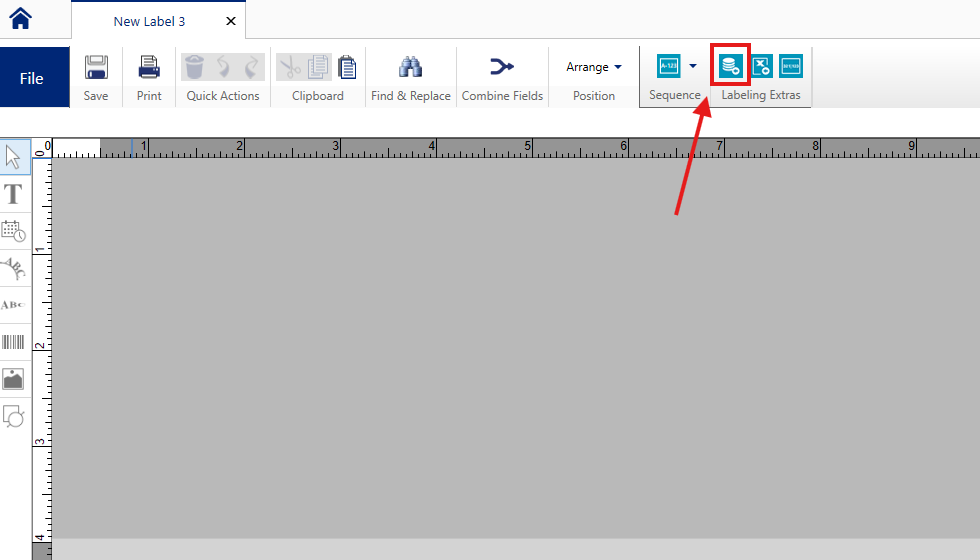
- Select the Advanced Import plugin on the upper toolbar in Custom Designer or Text Labels.
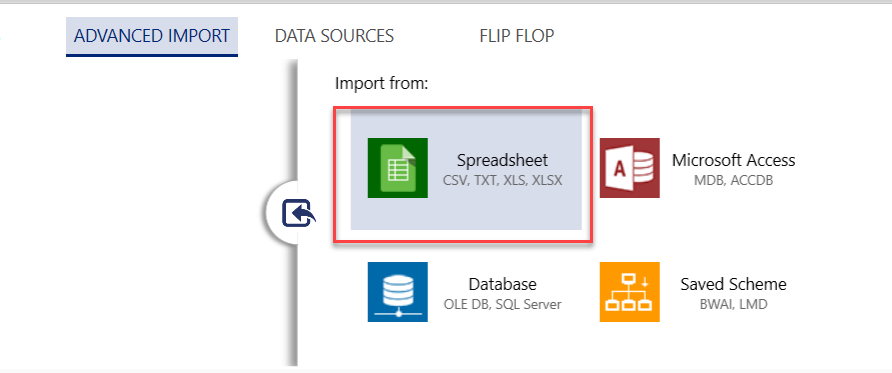
- Select the Spreadsheet option.
- Navigate your computer to locate & select your .CSV file.
- Verify your data imported correctly. You may need to make adjustments to the CSV or text file and reimport the data.
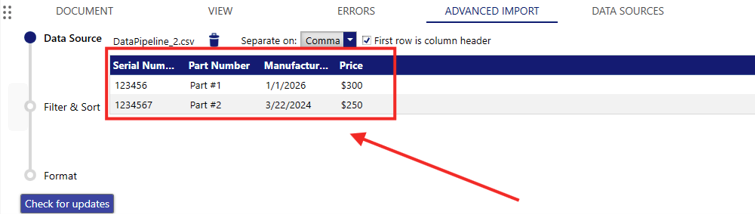
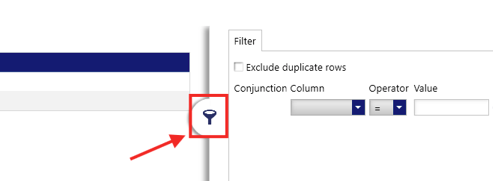
- Apply filters or sorting parameters if necessary.
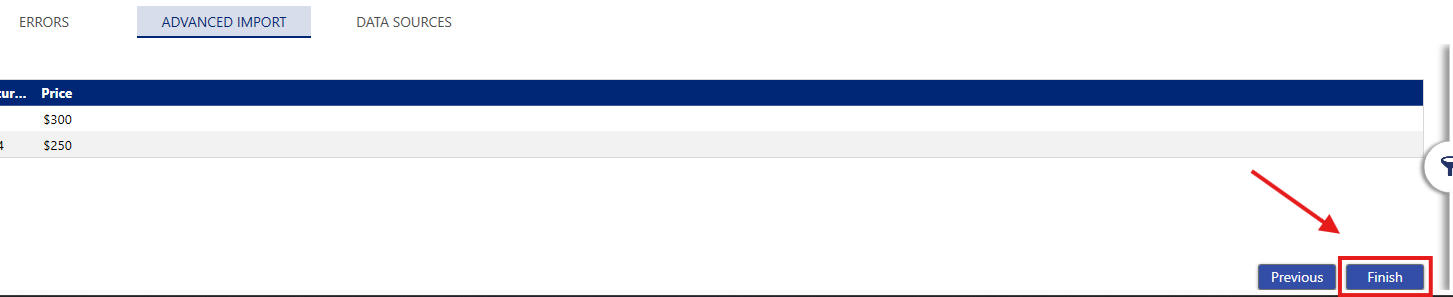
- Click Finish.
- Drag and drop data into the label canvas as needed. Dragging the data from the top entry in a column populates all data below into subsequent columns. Select Place All will automatically import the first 10 columns.
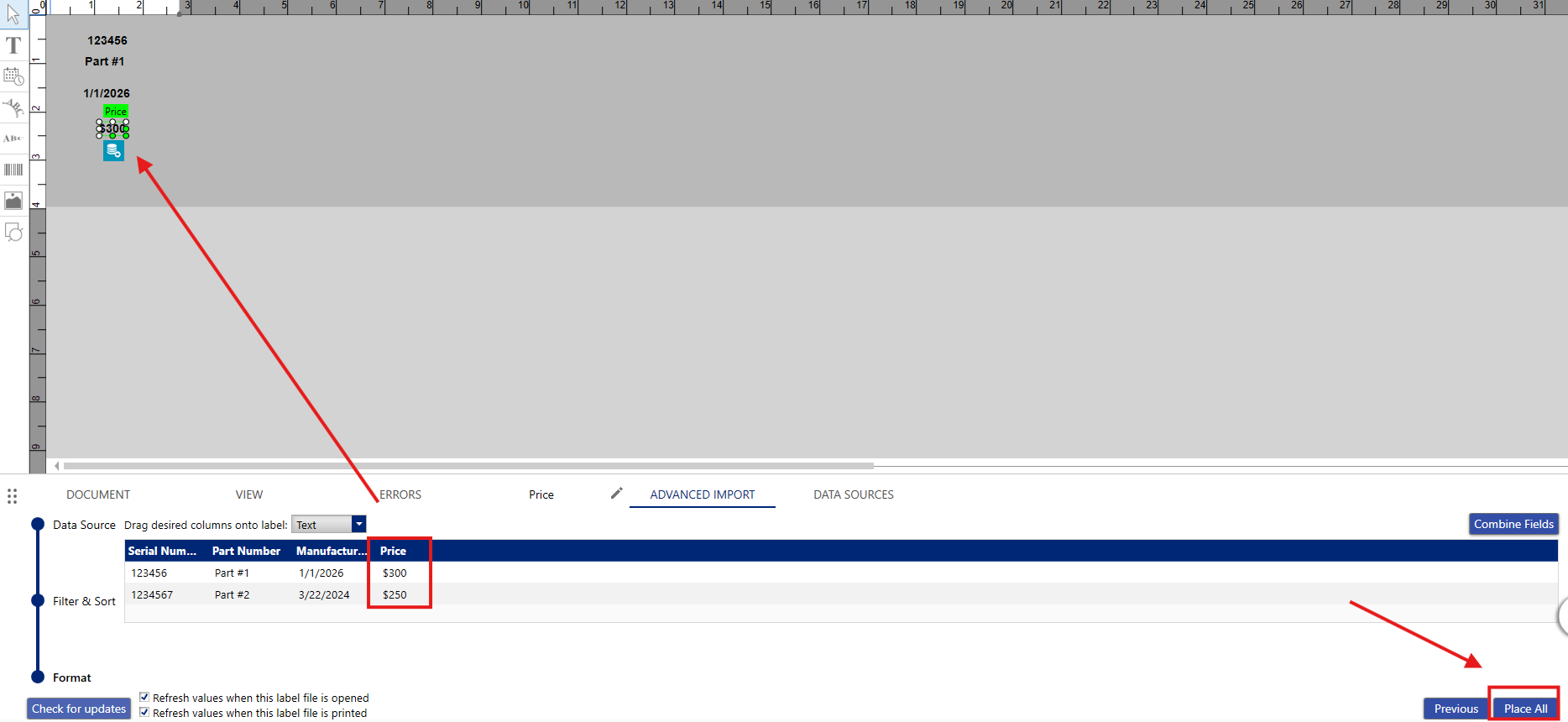
NOTE: Current "Place All" functionality puts the all the fields from row one onto the label, BUT, they will be placed from top to bottom with each subsequent line moved to the right. You will then need to move them where you want. AND, if using a template, Place All will put the data onto the template as described in previous sentence and will NOT be placed into placeholder fields. The place all button will work with your label templates in the Data Automation software.
- Data can also be imported as a barcode by selecting the drop down menu option above your data set:
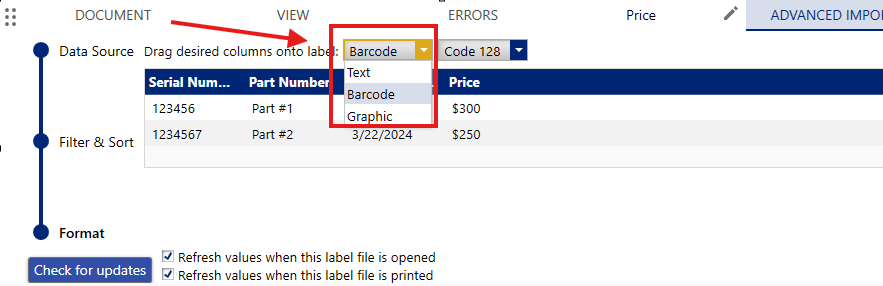
NOTE: Checking for updates (bottom left of screen above) will check to see if any changes have been made to your data file since the file was last imported. Any new data will be automatically imported into your label file in Brady Workstation. This only works if if your source file is stored in the same exact location on your computer as when the file was first imported. Since the data within template files is not saved, the check for updates button will not appear when using the Advanced Import plugin with a template file.
Questions regarding importing your data into Brady Workstation? Reach out to Brady Technical Support: Global Brady Technical Support Contact Information.