Print Options
Create the label in the Express Labels Mobile application: Express Labels Mobile - How to Create a Basic Label File or refer to the Create and Print Label Files section within Express Labels Mobile - Features and Functionality for other step by step instructions.
Important: You must connect the printer to the Express Labels Mobile application in order to have the Print Options.
Select the Gear icon in the top right-hand corner of the app.
Range of Labels
To print a specific range of labels, select Labels.
The possible options are:
- All - This prints the entire label file.
- Range - This prints a specific number of labels in consecutive order.
- Selection - This prints anything that is entered in the textbox.
Copies
Copies prints a specific number labels. If there are multiple labels in the file, it will print the number of copies for each label.
Select the down arrow to decrease the number of copies and the up arrow to increase the number of copies.
Print a Specific Label
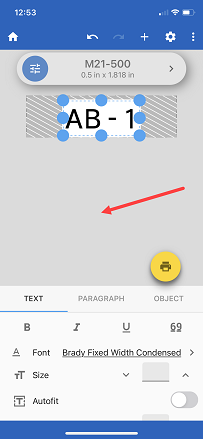
In order to print a specific label in the file, enable thumbnails.
Note: If you do not have thumbnails, select the three dots and select Show thumbnails.
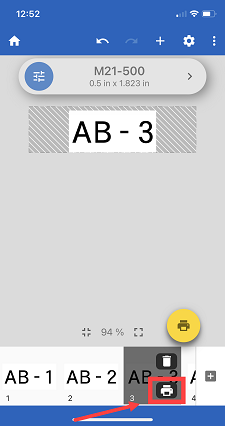
After you create the label and enable thumbnails, select the gray area on the label. Select the specific label to print and select the Printer icon.
Print Preview
- Tap the gear icon.
- Tap Print Preview.
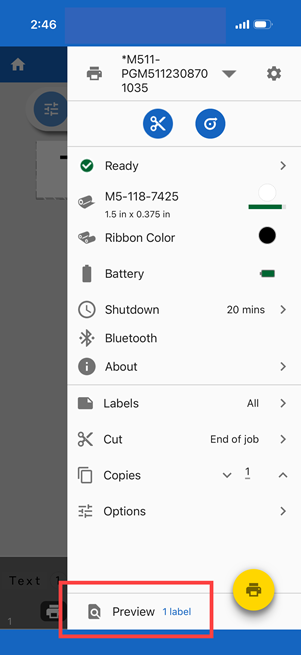
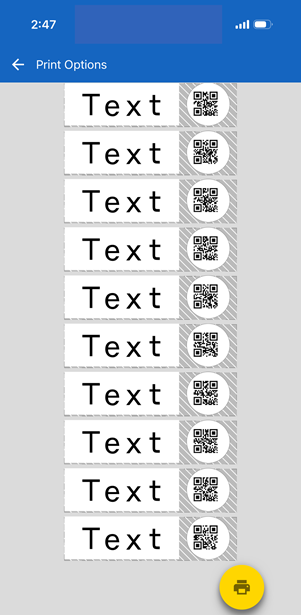
- The labels display.
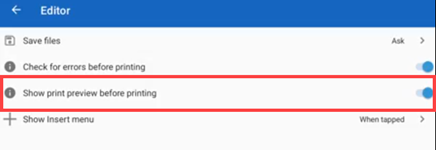
Some users may have a setting that can be toggled on or off in the Editor menu. Tap Settings and Editor.
When print is selected on the label creation screen, the print preview will display. Adjust labels, copies as needed and tap Print.
Related information