Label Layouts is available in Express Labels version 3.1.0. Update Express Labels if Label Layouts does not appear.
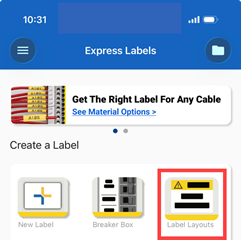
Label Layouts may appear on the home screen of Express Labels under Create a Label. Select Label Layouts and proceed to step 4. If Label Layouts is not under Create a Label, proceed to step 1.
- Open Express Labels.
- Tap Label Layouts.
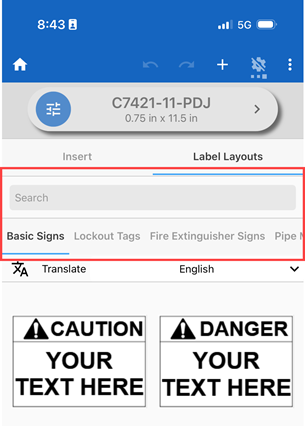
- Scroll through the Label Layout categories or tap Search and type in text to search for a layout.
Label Categories available:
-
- Basic Signs
- Lockout Tags
- Fire Extinguishers
- Pipe Marking
- Machine Safety Signage
- Equipment Identification
- IIAR Ammonia Pipe Marker
- Energy Source Isolation
- Padlock Labels
- Inspection Labels
- ARC Flash Labels
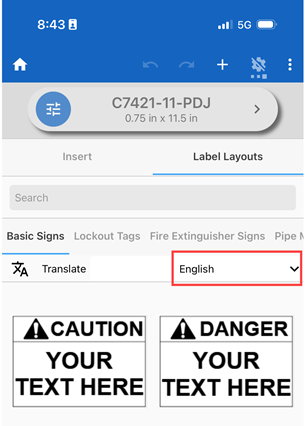
- If the label layout should be in another language, tap the Translate drop-down arrow next to English and select the corresponding language.
-
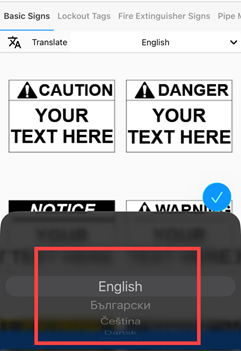
- Select the new language.
-
- The Label Layouts message displays. This message is to inform the user that the layout for the language will appear after it is selected in the list. Tap GOT IT.
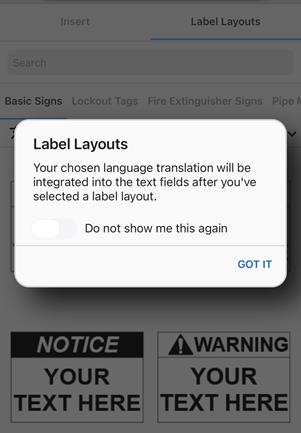
- Tap the layout. The label editor screen appears.
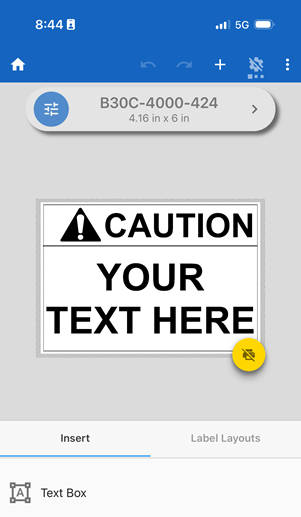
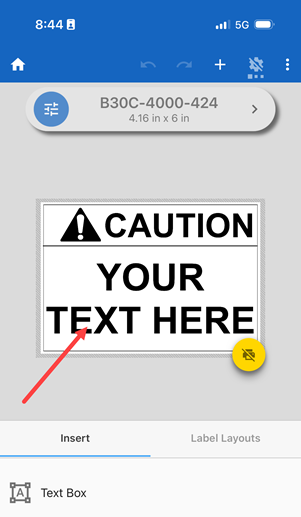
- To change a field in the layout, tap the field and enter the text or select the image and/or edit the field as needed.
For more information on how to create a label, view Express Labels Mobile - Create a Basic Label File.
Related information


