Create GS1 Barcodes in Brady Workstation
GS1 barcode builder was added to Brady Workstation in the 4.30.0.9 release in August 2026. If the GS1 Barcode Builder does not display, update Brady Workstation.
Review other GS1 information in GS1 Compliant Barcodes in Brady Workstation.
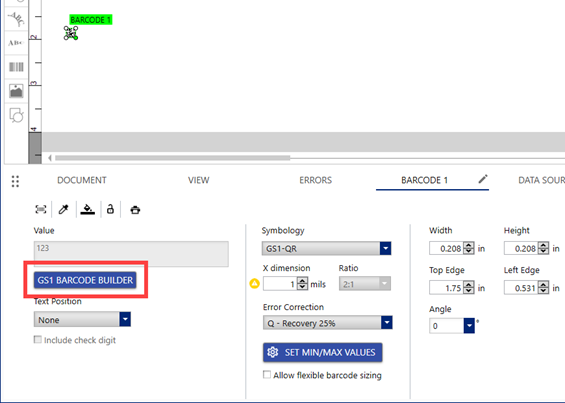
- As soon as a GS1 barcode (GS1-128, GS1-DataMatrix, GS1-QR) is selected in Brady Workstation, the GS1 barcode builder pops-up. If the GS1 Barcode Builder does not pop-up, click the button.
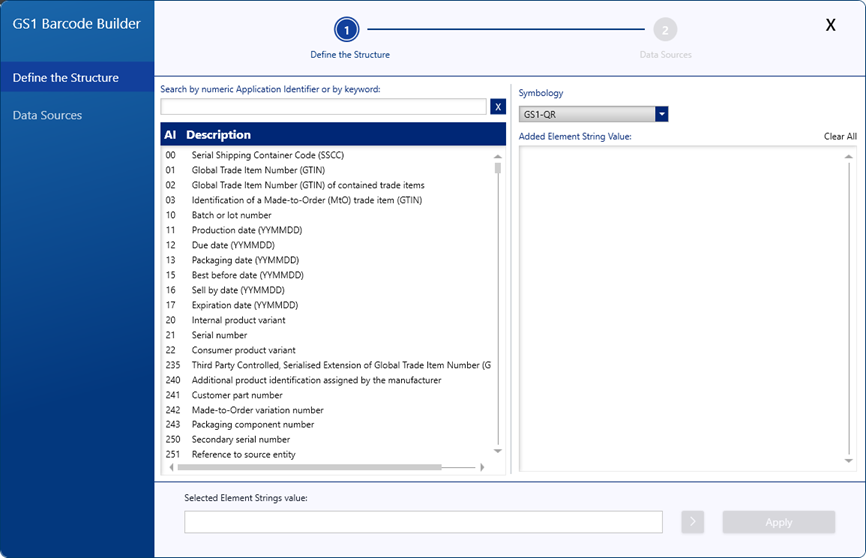
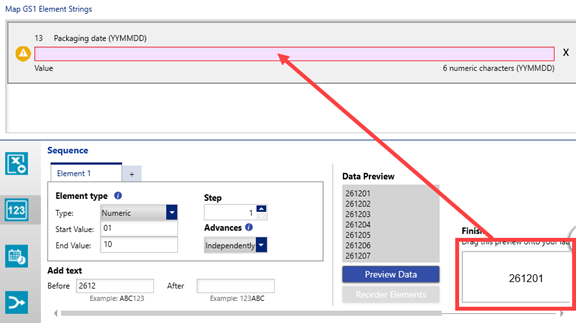
- Search for an Application Identifier (AI) or select one in the list.
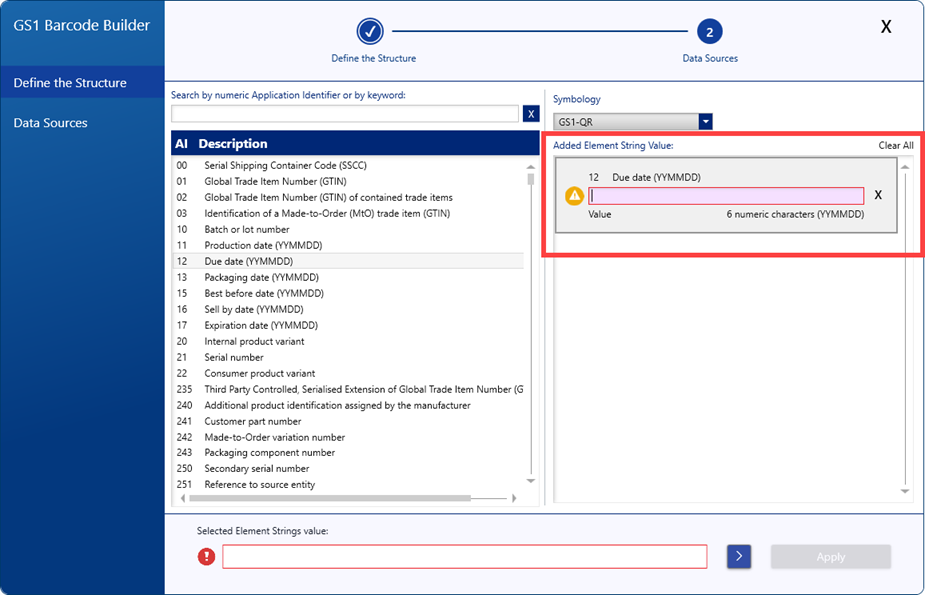
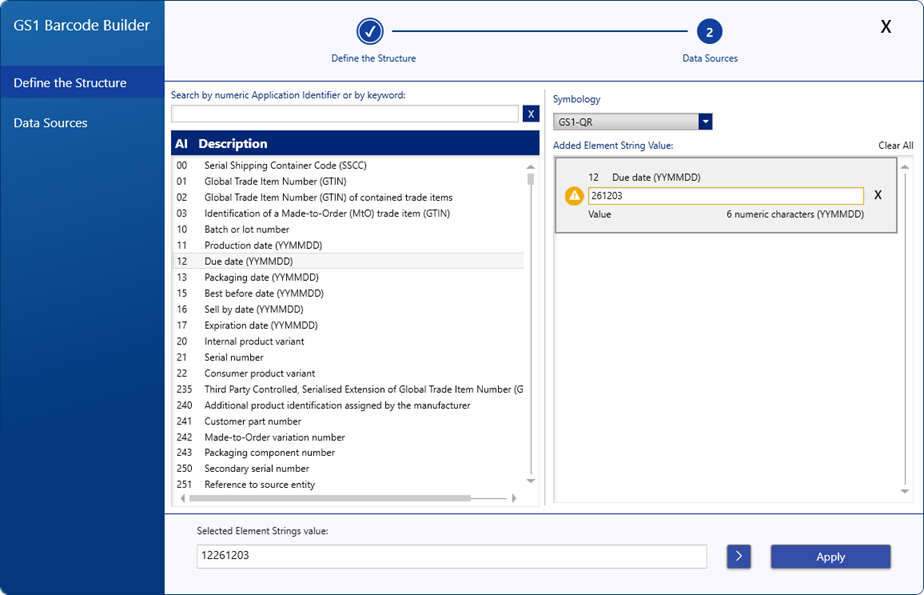
- Enter the information in the textbox or click the arrow to import from Excel, create a sequence, add a date or combined fields and proceed to step a below.
The textbox will be red until the correct values are entered.
Excel
-
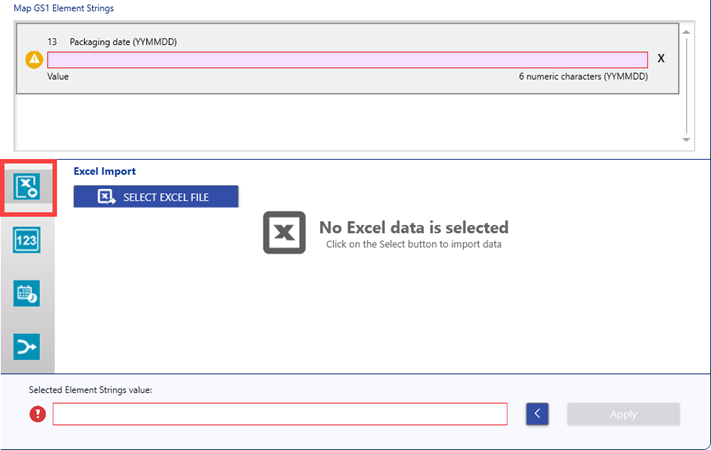
- Excel Import: The first blue icon is Excel import.
-
- Click Select Excel File.
- Search and find the file.
- If the excel file has headers, click Use first row as a header.
- Click and drag the column to the Map GS1 Element Strings textbox. Repeat as needed.
Sequence
-
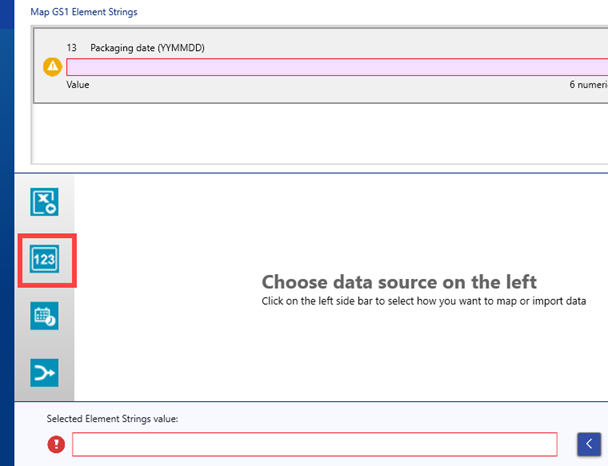
- Click the Sequence icon.
-
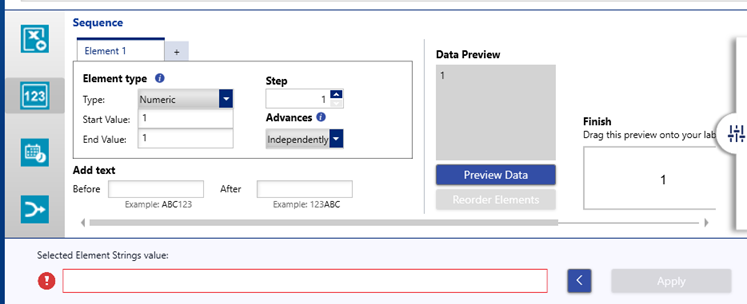
- Enter the information for Element 1: Type, Start Value, End Value, Step and Advances.
-
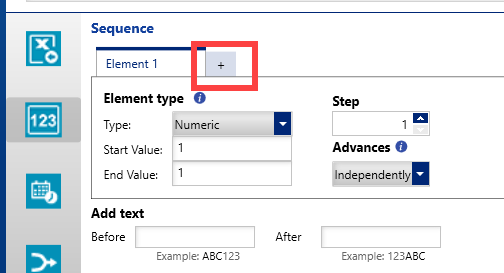
- If applicable, add other sequence by clicking the plus sign.
-
- Add Before or After text, if applicable.
-
- Once all information is entered, click and drag the text to the textbox for the AI.
Date and Time
-
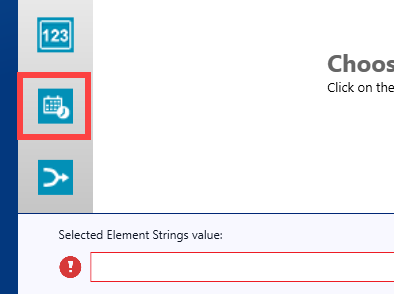
- Click the Date and Time icon.
-
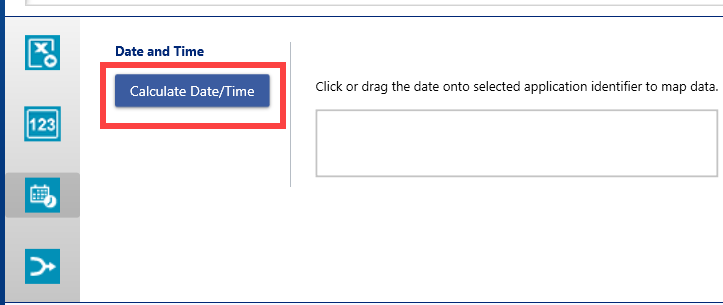
- Click Calculate Date/Time.
-
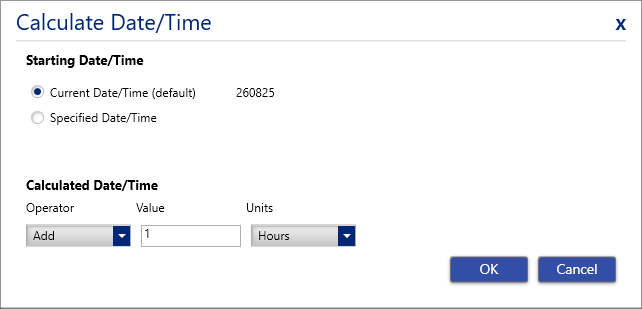
- Configure the date and time.
-
- Click OK.
- Click and drag the date into the AI.
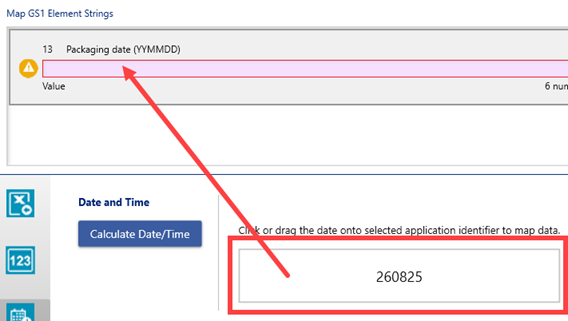
Generate Combine Fields
Text, placeholders or barcode data must be on the label prior to using combine fields.
-
- Click Generate Combine Fields.
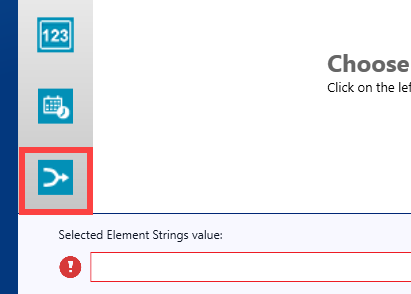
-
- Click the items under Available Items to add them to the Workspace.
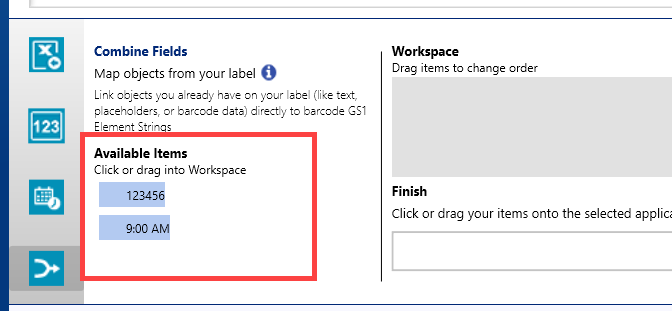
-
- Click and drag the text to one of the AIs in the Element Strings.
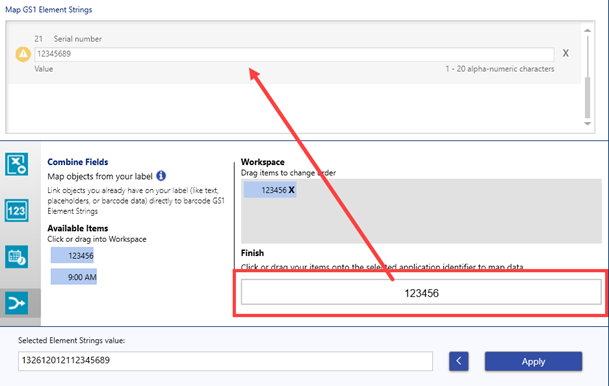
- Repeat step 3 to add additional AIs, if needed.
- Click Apply.

- Adjust other barcode properties as needed.